
Brolly Academy | Azure Data Engineering
Azure Data Factory Tutorial
for Beginners: Step-by-Step Pipelines (2026)
A hands-on Azure Data Factory tutorial for beginners. You set up a free Azure account, then build five real pipelines step by step: copy a file, add parameters, loop over many tables, load only new rows and transform data with Data Flow and Databricks. Triggers, monitoring, CI/CD, pricing and interview questions are covered too.
A hands-on Azure Data Factory tutorial: free account setup, five step-by-step pipelines, triggers, monitoring, CI/CD, pricing and interview questions.
By Dinesh, Azure Data Engineering Trainer (9+ years) · Brolly Academy · Updated 20 October 2026
Table of Contents
1. What you will build in this tutorial
2. What is Azure Data Factory?
3. Azure Data Factory core concepts
4. Before you start: prerequisites and setup
5. Tutorial 1: Copy a CSV file from ADLS Gen2 to Azure SQL Database
6. Tutorial 2: Make the pipeline dynamic with parameters and expressions
7. Tutorial 3: Copy many tables with Lookup and ForEach (metadata-driven pipeline)
8. Tutorial 4: Incremental load with a watermark
9. Tutorial 5: Transform data — Mapping Data Flow and Azure Databricks
11. Monitoring, error handling and alerts
12. Connecting to on-premises data with a self-hosted integration runtime
13. Git integration and CI/CD for Azure Data Factory
14. Azure Data Factory pricing explained with an example
15. Best practices and common mistakes
16. Azure Data Factory vs Databricks vs Fabric Data Factory vs SSIS
17. Practice exercises and a 30-day learning plan
18. Azure Data Factory interview questions from this tutorial
Quick answer
Azure Data Factory (ADF) is Microsoft's cloud service for moving and transforming data on a schedule: you connect sources with linked services, describe the data with datasets, and chain activities such as Copy, Lookup and ForEach inside a pipeline that a trigger runs. In this Azure Data Factory tutorial you build one pipeline for an example retail company, ShopKart. You copy a sales CSV from ADLS Gen2 into Azure SQL Database, make it dynamic with parameters, load many tables with one metadata-driven pipeline, and switch to incremental loads with a watermark. Then you transform data with Mapping Data Flow and Azure Databricks, schedule the pipeline in IST, add failure alerts and deploy it with Git and CI/CD. Most beginners finish the basics in two to three weeks of part-time practice. To learn it with a trainer and real-time projects, see our Azure Data Factory training in Hyderabad.
Key takeaways
- Learn five building blocks first: pipeline, activity, dataset, linked service and integration runtime. Everything else builds on them.
- Always Debug, then Publish all. Debug runs your draft, and triggers run only published pipelines.
- Parameterise from day one. One dynamic pipeline replaces dozens of copies.
- Load incrementally with a watermark instead of reloading full tables every night.
- ADF is still supported in 2026. Microsoft calls Fabric Data Factory its next generation, and your ADF skills carry over to it.
1. What you will build in this tutorial
Short answer: You build one ShopKart sales pipeline in five steps, and each tutorial adds one real-world skill on top of the last.
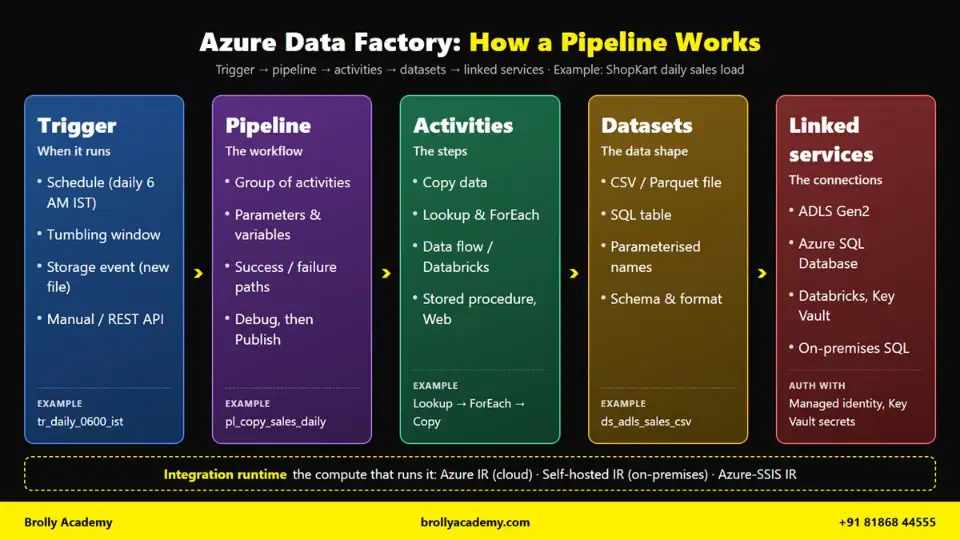
How an Azure Data Factory pipeline works: a trigger runs a pipeline, activities use datasets, datasets use linked services, and an integration runtime does the work.
2. What is Azure Data Factory?
Short answer: Azure Data Factory (ADF) is Microsoft's managed cloud service for moving, transforming and orchestrating data. You build pipelines in a browser, mostly by drag and drop, and ADF runs them on a schedule or when an event happens. It handles both ETL and ELT and connects to well over 100 sources, from on-premises SQL Server to SaaS apps.
Think of ADF as the "conductor" of a data platform. It does not store data; it moves and changes it reliably, every day. It is managed (Microsoft runs the servers), hybrid (it reaches cloud and on-premises data) and an orchestrator (it calls Databricks, stored procedures or REST APIs in the right order, with retries and alerts). You pay only when pipelines run.
What is Azure Data Factory used for?
Five real jobs ADF does in Indian companies every day:
- Daily file ingestion. Store sales files land in Azure Data Lake Storage Gen2 every night, and ADF loads them into Azure SQL Database or a lakehouse before business opens.
- Database migration. A bank moves tables from on-premises Oracle or SQL Server into Azure, first as a bulk load and then as daily incremental loads.
- SaaS extraction. Salesforce, ServiceNow or Google Ads data is pulled next to sales data using built-in connectors.
- Orchestrating Spark and SQL jobs. ADF runs a Databricks notebook, then a stored procedure, then sends an email if anything fails.
- Running SSIS packages in Azure. Existing SSIS packages run on the Azure-SSIS integration runtime without a rewrite.
Is Azure Data Factory an ETL tool?
Yes. It is best described as an ETL, ELT and orchestration tool, in line with Microsoft's introduction to Azure Data Factory. The Copy activity extracts and loads, and mapping data flows transform data visually on Spark clusters that ADF manages. In most modern projects, though, ADF works ELT style: it lands raw data in a lake and hands heavy transformation to Azure Databricks, Microsoft Fabric or SQL. That is why senior engineers often say "ADF is our orchestrator". To see how raw, cleaned and business-ready layers are organised after ADF lands the data, read our guide to medallion architecture.
Does Azure Data Factory require coding?
No, not to get started. ADF is low-code: you build connections, datasets and pipelines with forms and a drag-and-drop canvas. Your first pipeline in this tutorial needs no code. Three skills still make you far more effective:
- SQL for source queries, tables and stored procedures. This matters most.
- ADF expressions such as @concat('sales_', pipeline().parameters.runDate, '.csv'), which feel like Excel formulas.
- Basic PySpark, only when ADF calls Databricks notebooks.
The honest interview answer: "ADF is low-code, but real projects need SQL and expressions, and often some PySpark."
Azure Data Factory in 2026: is it being replaced by Fabric Data Factory?
ADF is not deprecated. It is a supported Azure service, Microsoft has announced no retirement date for it, and you can create new data factories today. Every tutorial on this page works on a fresh 2026 account.
But know where Microsoft is heading. Microsoft calls Data Factory in Microsoft Fabric "the next generation of Azure Data Factory". ADF pages on Microsoft Learn now suggest that people new to data integration start with Fabric Data Factory, and Microsoft has published guidance for upgrading ADF pipelines to Fabric.
The last row is the key. Pipelines, activities, Lookup, ForEach, parameters and expressions work almost the same in both, so everything you learn here transfers to Fabric. See Microsoft's official comparison of Fabric Data Factory and Azure Data Factory.
Two specific changes worth knowing in 2026:
- Workflow Orchestration Manager (managed Apache Airflow inside ADF) no longer allows new Airflow instances from 1 January 2026. Microsoft recommends Apache Airflow jobs in Microsoft Fabric instead.
- Connector versions. Several ADF connectors, including Azure SQL Database, now show a Recommended version and a Legacy version. Always pick Recommended for new linked services.
If you are planning for the DP-700 Fabric exam as well, our DP-700 syllabus guide shows which pipeline topics carry over.
Is Azure Data Factory easy to learn, and how long does it take?
ADF is one of the easier Azure data services to start with, because the UI guides you. The hard part is designing pipelines that are dynamic, restartable and cheap. Here is a reasoned estimate, not a statistic, for someone with basic SQL studying 1 to 2 hours a day:
The estimate reflects how many concepts each stage has and the practice each needs. SSIS or Informatica experience makes you faster; if SQL is new, add two or three weeks for SQL first.
3. Azure Data Factory core concepts
Short answer: ADF has six building blocks you must know: pipelines, activities, datasets, linked services, integration runtimes and triggers. Mapping data flows add visual transformation, and parameters, variables and global parameters make everything dynamic. A linked service connects, a dataset points to data, an activity does work, a pipeline groups activities, and a trigger decides when the pipeline runs.
Our running example: ShopKart (an assumed retail company) drops daily files named sales_YYYY-MM-DD.csv into a data lake and wants them loaded into Azure SQL Database.
Pipelines
A pipeline is a logical group of activities that together perform one task, such as "load today's ShopKart sales into SQL". You schedule, run and monitor it as one unit. A pipeline can call another with the Execute Pipeline activity, so you can build small reusable pipelines. Microsoft documents a default soft limit of 120 activities per pipeline, including those inside containers like ForEach.
Activities
An activity is one step inside a pipeline. ADF has three types: data movement (the Copy activity), data transformation (Data Flow, or calling another compute such as Databricks or a stored procedure) and control flow (Lookup, ForEach, If Condition, Set variable and others that control order and logic).
Activities are linked with dependency arrows, each with a condition: Succeeded, Failed, Completed or Skipped. That is how you build "run this only if the copy worked" or "alert if it failed". The 12 activities you will use most:
Other useful ones include Switch, Until, Filter, Delete, Script, Validation, Append Variable and Data flow. You will meet several of them later in this tutorial.
Datasets
A dataset is a named pointer to the data an activity reads or writes, such as "this CSV file in this folder" or "this table in this database", plus format details like delimiter and header row. It holds no data and no passwords; it always refers to a linked service for the connection. For ShopKart, we will create a DelimitedText dataset for the sales CSV and an AzureSqlTable dataset for stg.sales.
Linked services
A linked service is the connection information ADF needs to reach an external resource, much like a connection string: server, database, authentication method and credentials. It can point to a data store (ADLS Gen2, Azure SQL Database, Oracle, SFTP) or to a compute service (Azure Databricks, Azure Functions).
The simple rule: a linked service says how to connect, a dataset says which data. One linked service to stshopkartdev can serve fifty datasets.
Integration runtimes
The integration runtime (IR) is the compute that actually runs your activities. When the Copy activity moves data, an integration runtime does the reading and writing. ADF has three types:
Every new factory includes a default Azure IR called AutoResolveIntegrationRuntime, which is all Tutorials 1 to 3 need.
Triggers
A trigger decides when a pipeline runs. ADF has four types:
- Schedule: a wall-clock schedule, such as daily at 6:00 AM India Standard Time.
- Tumbling window: fixed, back-to-back time windows that can backfill the past.
- Storage event: a file is created or deleted in Blob Storage or ADLS Gen2.
- Custom event: a custom event arrives through Azure Event Grid.
You can also run a pipeline manually with Trigger now, or from the REST API, PowerShell or an SDK.
Mapping data flows
A mapping data flow is a visual transformation designer. You add transformations such as Filter, Derived Column, Join and Aggregate, and ADF runs your design on a Spark cluster it starts and stops for you. Data flows suit teams that want transformations without writing PySpark, but they are billed per vCore-hour of Spark compute, so they cost more than a simple Copy.
Parameters, variables and global parameters
These three stop you hard-coding file names, dates and table names. Parameters are passed in at the start and are read-only. Variables can change during the run. Global parameters are factory-wide constants, such as an environment name dev or prod.
How the pieces fit together
Here is the full chain for ShopKart's daily load:
Linked service ls_adls_shopkart (how to reach stshopkartdev)
|
Dataset ds_sales_csv (raw/sales/sales_2026-10-20.csv, comma, header)
|
Activity Copy data (source ds_sales_csv -> sink ds_sql_stg_sales)
|
Pipeline pl_load_sales (Copy + Stored procedure + alert)
|
Trigger tr_daily_0600_ist (every day at 06:00 India Standard Time)
Integration runtime: AutoResolveIntegrationRuntime does the actual copy
What happens during one run:
- At 6:00 AM IST the trigger fires and creates a pipeline run with a unique run ID, and ADF evaluates expressions such as today's file name.
- The integration runtime reads the CSV through the source linked service, converts types and writes rows into the sink table.
- Each activity reports Succeeded or Failed, and dependent activities run or are skipped based on the arrow conditions.
- The run, row counts, duration and any errors appear in the Monitor hub.
4. Before you start: prerequisites and setup
Short answer: You need an Azure subscription, basic SQL and an Excel-level feel for data. You will create one resource group with an ADLS Gen2 storage account, a free-offer Azure SQL Database and a data factory, all inside rg-adf-tutorial so you can delete everything in one click when you finish. The whole setup takes about 30 to 45 minutes.
What you need
- An Azure subscription. The Azure free account currently gives a credit to use within 30 days (USD 200 at the time of writing), 12 months of free monthly amounts for popular services, and always-free services. After 30 days you must move to pay-as-you-go to keep using it. Offers change, so check the current terms before you sign up.
- Basic SQL (SELECT, INSERT, CREATE TABLE, WHERE) and an Excel-level feel for rows, columns and data types.
- Microsoft Edge or Google Chrome, the browsers ADF Studio supports.
Cost safety tips before you create anything
- Create a budget alert. In Cost Management + Billing > Budgets, select + Add, set an amount such as ₹500 a month, and add email alerts at 50%, 80% and 100%. A budget warns you; it does not stop spending.
- Use one resource group. Everything goes into rg-adf-tutorial. Delete the resource group when you finish and everything inside is removed.
- Keep the free SQL database on auto-pause so it pauses instead of billing you when the monthly free limit is used.
- Avoid always-on compute. Never leave a data flow debug session or Databricks cluster running overnight. Tutorials 1 to 3 use only Copy, Lookup and ForEach, which cost very little.
Step 1: Create the resource group
- Sign in to the Azure portal and search for Resource groups.
- Select + Create.
- Choose your Subscription, enter rg-adf-tutorial as the Resource group name, and pick a Region close to you, such as Central India or South India.
- Select Review + create, then Create.
Step 2: Create the ADLS Gen2 storage account
ADLS Gen2 is an Azure Storage account with the hierarchical namespace switched on, which gives you real folders and folder-level permissions.
- Search for Storage accounts and select + Create.
- On the Basics tab, select resource group rg-adf-tutorial, enter stshopkartdev as the Storage account name (lowercase letters and numbers only, globally unique; add your initials if it is taken), choose the same region, and keep Standard performance with Locally-redundant storage (LRS) to keep cost low.
- Go to the Advanced tab and tick Enable hierarchical namespace. Do not skip this. Without it, you get plain Blob storage, not ADLS Gen2.
- Select Review + create, then Create, and then Go to resource.
- In the storage account, open Data storage > Containers, select + Container, name it raw, and select Create.
- Open the raw container, select + Add Directory, and create a folder named sales.
Now create the sample file. Open Notepad, paste the data below, and save it as sales_2026-10-20.csv:
order_id,order_date,store_city,product_category,quantity,unit_price_inr,total_amount_inr,payment_mode
SK-100001,2026-10-20,Hyderabad,Groceries,3,249.50,748.50,UPI
SK-100002,2026-10-20,Bengaluru,Electronics,1,18999.00,18999.00,Card
SK-100003,2026-10-20,Chennai,Fashion,2,1299.00,2598.00,UPI
SK-100004,2026-10-20,Mumbai,Home Decor,4,450.00,1800.00,Cash
SK-100005,2026-10-20,Pune,Groceries,6,85.00,510.00,UPI
SK-100006,2026-10-20,Delhi,Electronics,1,2499.00,2499.00,Card
SK-100007,2026-10-20,Kolkata,Fashion,1,899.00,899.00,Wallet
Upload it: open the sales folder inside raw, select Upload, choose the file, and select Upload. The full path is now raw/sales/sales_2026-10-20.csv.
Also upload a copy named sales_2026-10-19.csv with the dates changed to 2026-10-19 and order IDs SK-099001 to SK-099007. Tutorial 2 uses it.
Step 3: Create the Azure SQL Database with the free offer
The Azure SQL Database free offer gives each subscription up to 10 General Purpose serverless databases, each with 100,000 vCore seconds of compute, 32 GB of data and 32 GB of backup storage free every month for the subscription's lifetime. One catch: Microsoft currently lists the Azure for Students Starter offer as incompatible, so check the current terms if you use a student subscription.
- In the portal, search for Azure SQL and open the Azure SQL hub. In the Create a database pane, select Start free. (You can also start from SQL databases > + Create and apply the free offer from the banner at the top of the page.)
- Check that the Free offer applied! banner appears, and that the Cost summary card shows an estimated cost of zero.
- On the Basics tab, choose resource group rg-adf-tutorial and enter sqldb-shopkart as the Database name.
- For Server, select Create new. Enter a globally unique server name such as sql-shopkart-dev-<yourinitials>, choose the same region, and for authentication choose Use both SQL and Microsoft Entra authentication. Set yourself as the Microsoft Entra admin, and create a SQL admin login and a strong password. Note them down safely.
- Keep Behavior when free limit reached as Auto-pause the database until next month.
- On the Networking tab, choose Public endpoint, set Allow Azure services and resources to access this server to Yes, and set Add current client IP address to Yes.
- Select Review + create, then Create.
That firewall exception lets ADF's Azure integration runtime reach the database. Missing it is the most common first-pipeline failure.
Step 4: Create the tables
Open sqldb-shopkart, select Query editor (preview) and sign in. Select and run the two EXEC lines first, then run the CREATE TABLE:
EXEC('CREATE SCHEMA stg');
EXEC('CREATE SCHEMA etl');
CREATE TABLE stg.sales (
order_id VARCHAR(20) NOT NULL,
order_date DATE NOT NULL,
store_city VARCHAR(50) NOT NULL,
product_category VARCHAR(50) NOT NULL,
quantity INT NOT NULL,
unit_price_inr DECIMAL(10,2) NOT NULL,
total_amount_inr DECIMAL(12,2) NOT NULL,
payment_mode VARCHAR(20) NOT NULL
);
stg.sales is emptied and reloaded on every run. dbo.sales is the permanent table that later tutorials merge into:
CREATE TABLE dbo.sales (
order_id VARCHAR(20) NOT NULL PRIMARY KEY,
order_date DATE NOT NULL,
store_city VARCHAR(50) NOT NULL,
product_category VARCHAR(50) NOT NULL,
quantity INT NOT NULL,
unit_price_inr DECIMAL(10,2) NOT NULL,
total_amount_inr DECIMAL(12,2) NOT NULL,
payment_mode VARCHAR(20) NOT NULL,
modified_date DATETIME2 NOT NULL DEFAULT SYSUTCDATETIME()
);
The control table etl.table_list comes in Tutorial 3 and the watermark table etl.watermark in Tutorial 4.
Step 5: Create the data factory
- Search for Data factories and select + Create.
- On the Basics tab, choose your Subscription and resource group rg-adf-tutorial.
- For Region, choose the same region as your storage and database. This is where the factory's metadata is stored.
- For Name, enter adf-shopkart-dev. The name must be globally unique, 3 to 63 characters, start with a letter or number, and use only letters, numbers and single dashes. If it is taken, add your initials.
- For Version, select V2.
- Open the Git configuration tab and tick Configure Git later.
- Select Review + create, then Create.
- When deployment finishes, select Go to resource, and then select Launch Studio to open Azure Data Factory Studio.
If the studio gets stuck on "Authorizing", allow third-party cookies for login.microsoftonline.com.
Step 6: A quick tour of ADF Studio
ADF Studio has a narrow menu on the left with five hubs. You will use all of them:
A good habit: create connections in Manage, build in Author, watch runs in Monitor. The number on Publish all in the top bar counts changes that are not yet live.
5. Tutorial 1: Copy a CSV file from ADLS Gen2 to Azure SQL Database
Short answer: You will create two linked services (ADLS Gen2 with the factory's managed identity, Azure SQL Database with SQL authentication), two datasets (DelimitedText and AzureSqlTable) and one pipeline with a Copy data activity. You test it with Debug, publish it with Publish all, run it with Add trigger > Trigger now, and check the run in the Monitor hub. At the end, seven ShopKart rows sit in stg.sales.
Step 1: Give the data factory permission to read the data lake
Every data factory gets a system-assigned managed identity, a Microsoft Entra ID identity with the factory's name. Using it means no storage keys sit in your linked service.
- In the Azure portal, open the storage account stshopkartdev.
- Select Access control (IAM) > + Add > Add role assignment.
- On the Role tab, search for and select Storage Blob Data Reader, then select Next.
- For Assign access to, choose Managed identity, then select + Select members.
- In the Managed identity dropdown, choose Data factory (V2), select adf-shopkart-dev, and select Select.
- Select Review + assign.
Role assignments can take a few minutes to apply, so if the first connection test fails, wait and retry. To write files to ADLS Gen2, you would grant Storage Blob Data Contributor instead.
Step 2: Create the ADLS Gen2 linked service
- In ADF Studio, open the Manage hub and select Linked services > + New.
- Search for and select Azure Data Lake Storage Gen2, then select Continue.
- Set Name to ls_adls_shopkart. Names of linked services and datasets cannot contain dashes, so we use underscores.
- Keep Connect via integration runtime as AutoResolveIntegrationRuntime.
- Set Authentication type to System Assigned Managed Identity.
- Set Account selection method to From Azure subscription, then pick your subscription and stshopkartdev.
- Select Test connection. You should see "Connection successful".
- Select Create.
Step 3: Create the Azure SQL Database linked service
- In Manage > Linked services, select + New, choose Azure SQL Database, and select Continue.
- Set Name to ls_sql_shopkart.
- If you see a Version option, choose Recommended. The Legacy version exists only for older linked services.
- Choose your subscription, your Server name and sqldb-shopkart as the Database name.
- Set Authentication type to SQL authentication, and enter your SQL admin User name and Password.
- Select Test connection, then Create.
SQL authentication is the quickest start. In real projects, keep the password in Azure Key Vault or, better, use System Assigned Managed Identity here too. For that, connect as the Microsoft Entra admin and run:
CREATE USER [adf-shopkart-dev] FROM EXTERNAL PROVIDER;
ALTER ROLE db_datareader ADD MEMBER [adf-shopkart-dev];
ALTER ROLE db_datawriter ADD MEMBER [adf-shopkart-dev];
ALTER ROLE db_ddladmin ADD MEMBER [adf-shopkart-dev];
Then switch the linked service's authentication type to the managed identity. The db_ddladmin role is needed later because the pipeline will run TRUNCATE TABLE before each load.
Step 4: Create the source dataset
- Open the Author hub. Next to Factory Resources, select the + icon and then Dataset.
- Choose Azure Data Lake Storage Gen2 and select Continue.
- Choose DelimitedText as the format and select Continue.
- Set Name to ds_sales_csv and Linked service to ls_adls_shopkart.
- For File path, select the folder icon to browse, or type: file system raw, directory sales, file sales_2026-10-20.csv.
- Tick First row as header.
- For Import schema, choose From connection/store, then select OK.
- On the dataset's Connection tab, check that Column delimiter is Comma (,). Select Preview data to see your seven rows.
Step 5: Create the sink dataset
- In Author, select + > Dataset again.
- Choose Azure SQL Database and select Continue.
- Set Name to ds_sql_stg_sales and Linked service to ls_sql_shopkart.
- For Table name, choose stg.sales from the list. If it does not appear, select Refresh, or choose Enter manually and type schema stg and table sales.
- Keep Import schema as From connection/store and select OK.
Step 6: Build the pipeline with a Copy data activity
- In Author, select + > Pipeline > Pipeline.
- In the Properties pane on the right, set Name to pl_copy_sales_csv_to_sql. Close the pane.
- In the Activities pane, expand Move and transform and drag Copy data onto the canvas.
- On the General tab, rename it CopySalesCsvToSql.
- On the Source tab, choose Source dataset ds_sales_csv. Keep File path type as File path in dataset.
- On the Sink tab, choose Sink dataset ds_sql_stg_sales. Keep Write behavior as Insert.
- In Pre-copy script, enter TRUNCATE TABLE stg.sales. This empties the staging table before each load, so running the pipeline twice does not create duplicates.
- On the Mapping tab, select Import schemas. ADF maps CSV columns to SQL columns by name. Check that all eight columns are mapped and that the types on the right match the SQL table.
- Select Validate on the toolbar. Fix anything it reports.
Truncate-and-insert makes the load idempotent: run it any number of times and get the same result, with no duplicates.
Step 7: Test with Debug
- Select Debug on the pipeline toolbar.
- Watch the Output tab at the bottom. The status moves from Queued to In progress to Succeeded, usually within a minute.
- Hover over the activity row and select the Details icon (eyeglasses) to see rows read, rows written and duration.
Debug runs the version on your canvas, even if it is not published. Perfect for testing, but it is not the "real" pipeline.
Step 8: Check the rows in SQL
Open Query editor (preview) on sqldb-shopkart and run:
SELECT store_city, COUNT(*) AS orders, SUM(total_amount_inr) AS sales_inr
FROM stg.sales
GROUP BY store_city
ORDER BY sales_inr DESC;
You should see seven cities, with Bengaluru on top at ₹18,999.00. Total sales across all rows are ₹28,053.50.
Step 9: Publish and run for real
- Select Publish all in the top bar. A panel lists your pending changes, such as the pipeline and the two datasets. Select Publish.
- Wait for the "Successfully published" notification.
- Open the pipeline, select Add trigger > Trigger now, and select OK in the Pipeline run panel.
Step 10: Watch it in the Monitor hub
- Open the Monitor hub. Under Runs > Pipeline runs, the Triggered tab shows your run. Debug runs appear separately on the Debug tab.
- Select the pipeline name to see its activity runs.
- Select the eyeglasses icon next to CopySalesCsvToSql for copy details such as rows copied and the integration runtime used.
You have built and run a complete ADF pipeline, following the same flow as Microsoft's copy data tutorial. Every tutorial that follows extends it.
Common errors in your first pipeline
Error 1: Cannot connect to SQL server (firewall). The client IP is not allowed, or the connection test times out. Fix: on the SQL server, open Security > Networking and tick Allow Azure services and resources to access this server under Exceptions.
Error 2: 403 "This request is not authorized to perform this operation using this permission". The managed identity has no data access. Owner or Contributor on the storage account is not enough, because those roles manage the account but cannot read data. Fix: assign Storage Blob Data Reader (or Storage Blob Data Contributor) to adf-shopkart-dev, wait a few minutes, and retry.
Error 3: Column mapping or type conversion failure. A value cannot be converted to DECIMAL, or a column is not found. Typical causes: a currency symbol in the amount (₹748.50), a 20/10/2026 style date, or a renamed column. Fix: keep amounts numeric at source, set the date format in the Mapping tab's type conversion settings, or land everything as text and convert in SQL.
Error 4: Header row treated as data. The copy fails converting the word "quantity" into an integer. Fix: tick First row as header on the dataset's Connection tab and import the schema again. The reverse mistake (ticking it for a file with no header) silently drops your first row.
Error 5: "It worked in Debug, but the trigger ran the old version". Debug runs your canvas; triggers, including Trigger now, run only the published version. Fix: select Publish all after every change. A number on Publish all means unpublished changes.
6. Tutorial 2: Make the pipeline dynamic with parameters and expressions
Short answer: Instead of hard-coding sales_2026-10-20.csv, you add a dataset parameter fileName and a pipeline parameter runDate, then build the name with @concat('sales_', ..., '.csv'). If the default today is kept, a Set variable activity uses today's date in India Standard Time with convertFromUtc. The same pipeline can then load any day's file, today or in the past.
Tutorial 1's file name is fixed, so tomorrow it would reload yesterday's file. Real pipelines never hard-code dates.
Step 1: Add a parameter to the source dataset
- In Author, open ds_sales_csv. To keep Tutorial 1 intact, you can first clone it (select the three dots next to it, then Clone) and name the clone ds_sales_csv_param.
- Open the dataset's Parameters tab, select + New, and add a parameter named fileName of type String. Leave the default value empty.
- Go to the Connection tab. Select the file name box in File path, then select Add dynamic content.
- In the expression builder, select fileName under Parameters. The box shows @dataset().fileName. Select OK.
Now whoever uses the dataset must pass a file name.
Step 2: Add a pipeline parameter and a variable
- Clone pl_copy_sales_csv_to_sql and name it pl_copy_sales_by_date.
- Select an empty area of the canvas. In the bottom pane, open the Parameters tab, select + New, and add runDate of type String with the default value today.
- Open the Variables tab, select + New, and add vRunDate of type String.
Why both? A parameter's default value is fixed text, not an expression, so @formatDateTime(utcNow(),'yyyy-MM-dd') typed as a default is not calculated. The common pattern is a runDate parameter with a placeholder default such as today, plus a Set variable activity that swaps the placeholder for the real date.
Step 3: Calculate the run date with Set variable
1. From Activities > General, drag a Set variable activity onto the canvas and name it SetRunDate.
2. On its Settings tab, choose Name vRunDate, select the Value box, and select Add dynamic content.
3. Enter this expression and select OK:
@if(
equals(pipeline().parameters.runDate, 'today'),
convertFromUtc(utcNow(), 'India Standard Time', 'yyyy-MM-dd'),
pipeline().parameters.runDate
)
4. Drag the green On success handle from SetRunDate to the Copy activity, so the copy runs only after the date is set.
Why convert? utcNow() returns UTC time, but ShopKart's business day is in India. A run at 3:00 AM IST on 21 October is still 20 October in UTC. convertFromUtc shifts the time to India Standard Time (UTC+05:30) and formats it in one step. If a UTC date is enough, use formatDateTime(utcNow(),'yyyy-MM-dd').
Step 4: Pass the dynamic file name to the dataset
1. Select the Copy activity and open the Source tab. Choose ds_sales_csv_param.
2. A Dataset properties section appears with fileName. Select its value box, then Add dynamic content.
3. Enter:
@concat('sales_', variables('vRunDate'), '.csv')
Without the IST fallback, you could use the parameter directly: @concat('sales_', pipeline().parameters.runDate, '.csv'). String interpolation gives the same result and is easier to read: sales_@{variables('vRunDate')}.csv.
Step 5: Test with and without a date
- Select Debug. A panel asks for runDate. Enter 2026-10-19 and select OK. The pipeline loads sales_2026-10-19.csv, the file with order IDs starting SK-099.
- Run Debug again and keep the default today. Now SetRunDate uses today's IST date. If no file exists for today, the copy fails with a "path does not exist" error. That is expected and correct.
A daily trigger runs this pipeline with the default, and an engineer can reload any past day by passing runDate. This backfill ability is something every production support team needs.
Parameters vs variables: a quick recap
One rule from Microsoft's ForEach documentation: variables are global to the pipeline run, so never use Set variable inside a ForEach that runs in parallel. Iterations would overwrite each other.
10 handy ADF expressions
All of these functions are documented in Microsoft's expression and functions reference. Outputs assume the run happens on 20 October 2026.
Three system values are also worth memorising: @pipeline().RunId (unique ID of this run), @pipeline().Pipeline (pipeline name) and @pipeline().TriggerTime (when the trigger fired, in UTC). You will use them in logging tables and failure emails.
7. Tutorial 3: Copy many tables with Lookup and ForEach (metadata-driven pipeline)
Short answer: You store the list of files and target tables in a control table etl.table_list, read it with a Lookup activity (with First row only turned off), and loop over the result with a ForEach activity using @activity('LookupTables').output.value. Inside the loop, one parameterised Copy activity uses @item().source_table and @item().target_table. Adding a new feed then means inserting one row in SQL, not building a new pipeline.
ShopKart now sends three daily files: sales, customers and stores. A real client might have 400 feeds. The professional answer is a metadata-driven pipeline: one generic pipeline driven by a table of metadata.
Step 1: Prepare the files and staging tables
Create two more folders inside raw: customers and stores. Upload a small file to each with today's date, for example customers_2026-10-20.csv:
customer_id,customer_name,city,signup_date
C-5001,Ananya Reddy,Hyderabad,2025-04-12
C-5002,Rahul Iyer,Chennai,2024-11-30
C-5003,Priya Sharma,Delhi,2026-01-08
And stores_2026-10-20.csv:
store_id,store_city,state,opened_on
ST-01,Hyderabad,Telangana,2019-06-01
ST-02,Bengaluru,Karnataka,2020-02-15
ST-03,Mumbai,Maharashtra,2021-09-10
Create matching staging tables in sqldb-shopkart:
CREATE TABLE stg.customers (
customer_id VARCHAR(20) NOT NULL,
customer_name VARCHAR(100) NOT NULL,
city VARCHAR(50) NOT NULL,
signup_date DATE NOT NULL
);
CREATE TABLE stg.stores (
store_id VARCHAR(10) NOT NULL,
store_city VARCHAR(50) NOT NULL,
state VARCHAR(50) NOT NULL,
opened_on DATE NOT NULL
);
Step 2: Create the control table
Each row of the control table describes one feed:
CREATE TABLE etl.table_list (
id INT IDENTITY(1,1) PRIMARY KEY,
source_table VARCHAR(100) NOT NULL, -- feed name = folder and file prefix
target_schema VARCHAR(50) NOT NULL,
target_table VARCHAR(100) NOT NULL,
load_order INT NOT NULL DEFAULT 1,
is_active BIT NOT NULL DEFAULT 1
);
INSERT INTO etl.table_list (source_table, target_schema, target_table, load_order)
VALUES ('stores', 'stg', 'stores', 1),
('customers', 'stg', 'customers', 2),
('sales', 'stg', 'sales', 3);
is_active switches a feed off without touching the pipeline, and load_order sets the order when the loop runs sequentially.
Step 3: Create generic, parameterised datasets
- Create a DelimitedText dataset on ls_adls_shopkart named ds_adls_csv_generic. Tick First row as header, and set Import schema to None, because the columns differ per feed.
- On its Parameters tab, add two String parameters: folderName and fileName.
- On the Connection tab, set the file path to file system raw, directory @dataset().folderName, and file @dataset().fileName, using Add dynamic content for the last two.
- Create an Azure SQL Database dataset on ls_sql_shopkart named ds_sql_table_generic, with Import schema set to None.
- Add two String parameters: schemaName and tableName.
- On the Connection tab, tick Enter manually for the table and set schema @dataset().schemaName and table @dataset().tableName.
With no imported schema, Copy maps columns by name at run time, so CSV headers must match SQL column names exactly.
Step 4: Build the pipeline: Set variable and Lookup
1. Create a new pipeline named pl_metadata_driven_copy, with a String parameter runDate and a String variable vRunDate, exactly as in Tutorial 2.
2. Add a Set variable activity SetRunDate with the same IST expression as before.
3. From Activities > General, drag a Lookup activity, name it LookupTables, and connect SetRunDate to it with On success.
4. On the Lookup's Settings tab, choose ds_sql_table_generic as the Source dataset. Give its parameters any valid value, such as etl and table_list; the query below overrides them.
5. Set Use query to Query and enter:
SELECT source_table, target_schema, target_table
FROM etl.table_list
WHERE is_active = 1
ORDER BY load_order;
6. Untick First row only. This is the most common mistake: when ticked (the default), Lookup returns only output.firstRow and the loop has nothing to iterate.
7. Select Debug. The Lookup output shows a count of 3 and a value array of three objects.
Step 5: Add the ForEach loop
1. From Activities > Iteration & conditionals, drag a ForEach activity, name it ForEachTable, and connect LookupTables to it with On success.
2. On its Settings tab, select Items > Add dynamic content and enter:
@activity('LookupTables').output.value
3. Leave Sequential unticked to run iterations in parallel, and set Batch count to 3.
4. Select the pencil icon inside the ForEach box to open its inner canvas.
Step 6: Add the inner Copy activity
1. On the ForEach inner canvas, add a Copy data activity named CopyFeedToStaging.
2. On the Source tab, choose ds_adls_csv_generic and fill in its dataset properties with dynamic content:
folderName : @item().source_table
fileName : @concat(item().source_table, '_', variables('vRunDate'), '.csv')
3. On the Sink tab, choose ds_sql_table_generic, and set schemaName to @item().target_schema and tableName to @item().target_table.
4. In Pre-copy script, add dynamic content so each table is emptied before its load:
@{concat('TRUNCATE TABLE ', item().target_schema, '.', item().target_table)}
5. Leave the Mapping tab empty. ADF maps columns by name at run time.
6. Use the breadcrumb at the top of the canvas to go back to the main pipeline, then select Validate and Debug.
@item() is the current element of the array, so in the first iteration @item().source_table is stores. Reading vRunDate inside the parallel loop is safe; only setting it would be a problem.
Step 7: Run, check and add a new feed
After a successful debug, open the Output tab. You will see one Lookup, one ForEach and three Copy activity runs. In SQL, check the counts:
SELECT 'stores' AS feed, COUNT(*) AS row_count FROM stg.stores
UNION ALL SELECT 'customers', COUNT(*) FROM stg.customers
UNION ALL SELECT 'sales', COUNT(*) FROM stg.sales;
You should get 3, 3 and 7 rows. To add a fourth feed, say products, you create the folder and staging table and insert one row into etl.table_list. The pipeline does not change. That is the whole point of metadata-driven design.
Select Publish all when you are done. ADF's Copy Data tool also offers a Metadata-driven copy task that generates a similar framework; build it by hand first so you understand what it creates.
Sequential vs parallel, and the batch count
- Sequential ticked: iterations run one after another, in array order. Use it when order matters (dimensions before facts) or when the target cannot handle concurrent loads.
- Sequential unticked (the default): iterations run in parallel. Batch count is the upper limit on concurrent iterations: default 20, maximum 50. It is a ceiling, not a promise.
Microsoft also documents a maximum of 100,000 items per ForEach, and you cannot nest a ForEach directly inside another ForEach. The workaround for both is a child pipeline called with Execute Pipeline.
In practice, start with a batch count of 4 to 8 and watch the target. Fifty parallel copies into a small free-tier database compete for the same compute and often finish slower than ten.
Lookup activity limits you must remember
From Microsoft's Lookup documentation, and popular in interviews:
The silent 5,000-row cut is the dangerous one: extra feeds are skipped and the run still shows Succeeded. The fix is a two-level design, where an outer pipeline looks up batches and an inner pipeline looks up the items in each batch. Also, a Lookup query or stored procedure must return exactly one result set.
While you are on the General tab of any Copy or Lookup, note the defaults: Timeout 12 hours, Retry 0, retry interval 30 seconds. For production, set retry to 1 or 2 so a brief network blip does not fail the night's load.
Why metadata-driven pipelines are standard in Indian service companies
On Azure data projects at large IT services companies in Hyderabad, Bengaluru, Pune or Chennai, the framework is very likely metadata-driven, for practical reasons:
- Scale. Migration projects often cover hundreds of tables for one client. One generic pipeline plus a control table scales; one pipeline per table does not.
- Change requests become data changes. A new table means a new row, not a new release through dev, test and production with formal approvals.
- Easier production support. Shift teams can disable a failing feed with is_active = 0 or rerun one table without editing pipelines.
- Reusable accelerators. Companies reuse the same control tables, logging tables and generic pipelines across clients, so knowing the pattern helps you contribute from week one.
That is why interviewers ask "How would you load 200 tables with one pipeline?" Your answer is this tutorial: a control table, Lookup with first row only turned off, ForEach over output.value, parameterised datasets with @item(), a sensible batch count and the 5,000-row limit in mind. For more scenario questions like this, practise with our Azure Data Factory interview questions, and when you are ready to build a portfolio piece on top of this pipeline, pick one from our list of Azure data engineer projects.
8. Tutorial 4: Incremental load with a watermark
Short answer: An incremental load copies only the rows that are new or changed since the last run, not the whole table. You store the last loaded timestamp (the watermark) in a control table. Each run looks up the old watermark and the new maximum timestamp, copies only the rows between them, then saves the new watermark with a stored procedure.
In Tutorials 1 to 3 you loaded full files. That breaks down when a table has crores of rows and only a few thousand change each day. Reloading everything every night wastes time and money, and it loads the source database.
The ShopKart scenario: the order app writes every order into dbo.sales in sqldb-shopkart. When a customer returns an item or a payment status changes, the app updates the row and sets modified_date. The analytics team wants only new and changed rows landed daily in the raw container of stshopkartdev, so Databricks can process them in Tutorial 5.
Step 1: Prepare the source table and the watermark table
dbo.sales from the setup section already has a modified_date DATETIME2 column that defaults to the current UTC time. Open sqldb-shopkart, select Query editor (preview) and run this script. It seeds dbo.sales from stg.sales (playing the role of the order app), indexes modified_date, and creates the watermark table.
INSERT INTO dbo.sales (order_id, order_date, store_city, product_category,
quantity, unit_price_inr, total_amount_inr, payment_mode)
SELECT s.order_id, s.order_date, s.store_city, s.product_category,
s.quantity, s.unit_price_inr, s.total_amount_inr, s.payment_mode
FROM stg.sales AS s
WHERE NOT EXISTS (SELECT 1 FROM dbo.sales AS d WHERE d.order_id = s.order_id);
CREATE INDEX ix_sales_modified_date ON dbo.sales (modified_date);
CREATE TABLE etl.watermark (
table_name VARCHAR(100) NOT NULL PRIMARY KEY,
watermark_value DATETIME2 NOT NULL,
updated_at DATETIME2 NOT NULL DEFAULT SYSUTCDATETIME()
);
INSERT INTO etl.watermark (table_name, watermark_value)
VALUES ('dbo.sales', '1900-01-01');
The first watermark is 1 January 1900 on purpose, so the first run becomes a full load. Every run after that is incremental.
Two rules keep this safe. The source application must update modified_date on every change, or ADF never sees it. And store timestamps in UTC, so time zone settings don't confuse the comparison.
Step 2: Create the stored procedure that saves the new watermark
CREATE PROCEDURE must be the only statement in its batch, so clear the Query editor, paste this on its own and run it:
CREATE OR ALTER PROCEDURE etl.usp_update_watermark
@table_name VARCHAR(100),
@new_watermark DATETIME2
AS
BEGIN
SET NOCOUNT ON;
UPDATE etl.watermark
SET watermark_value = @new_watermark,
updated_at = SYSUTCDATETIME()
WHERE table_name = @table_name;
END;
Step 3: Build the pipeline
- In the Author hub, select + and then Pipeline. Name it pl_sales_incremental.
- Add the String parameter runDate (default today), the String variable vRunDate, and a Set variable activity SetRunDate with the same IST expression, exactly as in Tutorial 2.
- Drag a Lookup activity named LookupOldWatermark and connect SetRunDate to it with On success. On Settings, choose ds_sql_table_generic from Tutorial 3 (give its parameters etl and watermark; the query overrides them), set Use query to Query and enter SELECT watermark_value FROM etl.watermark WHERE table_name = 'dbo.sales'. Keep First row only ticked.
- Drag a second Lookup named LookupNewWatermark, also after SetRunDate, on ds_sql_table_generic with the query SELECT MAX(modified_date) AS new_watermark FROM dbo.sales. Keep First row only ticked.
- Drag a Copy data activity named CopyIncrementalSales. Connect both Lookups to it with the green On success arrow, so the Lookups run in parallel and the copy waits for both.
- On the Copy Source tab, choose ds_sql_table_generic (parameters dbo and sales), set Use query to Query, select Add dynamic content and paste the query shown after this list.
- On the Sink tab, create a Parquet dataset on ls_adls_shopkart named ds_adls_parquet_sales_incr in file system raw, with a String parameter folderPath used as the directory. In the Copy sink, pass @concat('sales_incremental/load_date=', variables('vRunDate')).
- Drag a Stored procedure activity named UpdateWatermark and connect CopyIncrementalSales to it with On success. On Settings, pick ls_sql_shopkart and etl.usp_update_watermark, then select Import under Stored procedure parameters.
- Set table_name to dbo.sales and new_watermark to @activity('LookupNewWatermark').output.firstRow.new_watermark.
- Select Debug. Check rowsCopied in the Copy output, then query etl.watermark to confirm the value moved forward.
The source query for step 6:
SELECT order_id, order_date, store_city, product_category, quantity,
unit_price_inr, total_amount_inr, payment_mode, modified_date
FROM dbo.sales
WHERE modified_date > '@{activity('LookupOldWatermark').output.firstRow.watermark_value}'
AND modified_date <= '@{activity('LookupNewWatermark').output.firstRow.new_watermark}'
Why the filter uses greater than old and less than or equal to new
This window closes every gap. A row changed exactly at the old watermark was copied last time, so > skips it. A row changed a second after LookupNewWatermark ran is picked up tomorrow, because tomorrow's old watermark is today's new one.
The watermark is updated only after the copy succeeds. If the copy fails, the watermark stays put and the next run copies the same window again. That makes the pipeline safe to rerun.
Test it
After the first (full) run, simulate a return and a new order:
UPDATE dbo.sales
SET total_amount_inr = 0, modified_date = SYSUTCDATETIME()
WHERE order_id = 'SK-100003';
INSERT INTO dbo.sales (order_id, order_date, store_city, product_category,
quantity, unit_price_inr, total_amount_inr, payment_mode)
VALUES ('SK-100008', '2026-10-20', 'Pune', 'Groceries', 2, 399.00, 798.00, 'UPI');
Debug again. The Copy activity should report exactly 2 rows, and a new load_date=... folder appears in raw/sales_incremental/.
How this avoids full reloads
Run time stays almost flat as the table grows, the source sees a small indexed range query instead of a full scan, and DIU-hours drop. One thing a watermark cannot see is hard deletes. A deleted row never appears in the delta. Teams solve this with soft deletes (an is_deleted flag that also updates modified_date) or with change data capture.
Change data capture options in ADF
Microsoft calls the watermark pattern customer-managed delta extraction. ADF also has built-in options:
Native CDC on Azure SQL needs CDC or change tracking enabled on the source first. For learning and interviews, master the watermark pattern. It works everywhere and proves you understand the logic.
9. Tutorial 5: Transform data — Mapping Data Flow and Azure Databricks
Short answer: ADF transforms data in two main ways. Mapping Data Flows are a visual, low-code designer that runs on Spark clusters managed by ADF. For complex logic, ADF calls an Azure Databricks notebook with the Notebook activity, passes parameters to it and waits for it to finish.
ShopKart now wants cleaned data and a daily city-wise sales summary. You will build the summary in a Mapping Data Flow and the cleaned Delta table in Databricks.
Mapping data flow
Goal: read the daily CSV files from raw, clean them, total sales by date and city, and write the result to a new summary table.
CREATE TABLE dbo.sales_daily_city (
sale_date DATE NOT NULL,
city VARCHAR(50) NOT NULL,
order_count INT NOT NULL,
total_amount_inr DECIMAL(14,2) NOT NULL,
CONSTRAINT pk_sales_daily_city PRIMARY KEY (sale_date, city)
);
- In the Author hub, select + and then Data flow. Name it df_sales_daily_city.
- Turn on Data flow debug in the top bar and pick AutoResolveIntegrationRuntime. Wait for the green status dot.
- Select Add Source, name it srcSalesCsv, and choose ds_sales_csv from Tutorial 1. On Source options, set Wildcard paths to folder sales and file sales_*.csv so every daily file is read. Check Data preview.
- Add a Derived Column named cleanColumns with three columns: city as initCap(trim(store_city)), total_amount_inr as toDecimal(total_amount_inr, 12, 2), and sale_date as toDate(order_date, 'yyyy-MM-dd').
- Add a Filter named validRows with total_amount_inr > 0 && !isNull(sale_date) to drop refunds and broken rows.
- Add an Aggregate named byDateCity. Group by sale_date and city. Add order_count as count() and total_amount_inr as sum(total_amount_inr).
- Add a Sink named sinkDailyCity on a new Azure SQL dataset ds_sql_sales_daily_city (linked service ls_sql_shopkart, table dbo.sales_daily_city). For a simple rerunnable load, use Allow insert with the Table action set to truncate.
- Check each step in Data preview. Debug previews never write to the sink.
- Create a pipeline pl_sales_transform, add a Data flow activity that uses df_sales_daily_city, and select Debug. This run writes to SQL.
- Query dbo.sales_daily_city and confirm one row per date and city.
Cost note: while Data flow debug is on, you pay for the Spark cluster every hour, including the idle time to live. Microsoft's default debug cluster is 8 cores with a 60-minute time to live. Turn debug off when you stop working. On the Execute Data Flow activity, keep Compute type as General purpose, because Microsoft has announced the retirement of the Memory Optimized tier in 2027.
Calling a Databricks notebook
Real projects often need code: deduplication, Delta Lake MERGE, big joins or ML features. Here ADF stays the orchestrator and Databricks does the Spark work. ShopKart follows the medallion architecture: the incremental Parquet files from Tutorial 4 are the bronze layer, and Databricks writes a cleaned silver Delta table.
Step 1: Create the Databricks linked service.
- In the Manage hub, open Linked services, select + New, go to the Compute tab and pick Azure Databricks.
- Select your Databricks workspace.
- For Authentication type, prefer Managed service identity, and give the factory's managed identity access to the workspace (Microsoft's guidance uses the Contributor role on the workspace resource).
- If you must use an Access token, store it as a secret in Azure Key Vault and select Azure Key Vault as its source. Never paste tokens into the linked service.
- Choose New job cluster for scheduled jobs. It starts for the run and stops after it. An Existing interactive cluster is fine while learning but costs more if left running.
- Select Test connection, then Create.
Step 2: Write the notebook at /Shared/shopkart/nb_sales_silver. It reads two parameters with dbutils.widgets.get and writes a silver Delta table.
from pyspark.sql import functions as F
dbutils.widgets.text("run_date", "")
dbutils.widgets.text("source_path", "")
run_date = dbutils.widgets.get("run_date")
source_path = dbutils.widgets.get("source_path")
df = spark.read.parquet(source_path)
silver = (df.dropDuplicates(["order_id"])
.withColumn("store_city", F.initcap(F.trim("store_city")))
.withColumn("total_amount_inr", F.col("total_amount_inr").cast("decimal(12,2)"))
.withColumn("load_date", F.lit(run_date).cast("date")))
(silver.write.format("delta").mode("overwrite")
.option("replaceWhere", f"load_date = '{run_date}'")
.saveAsTable("shopkart.silver.sales"))
dbutils.notebook.exit(str(silver.count()))
replaceWhere overwrites only that day's slice, so a rerun for the same date gives the same result instead of duplicates. dbutils.notebook.exit returns the row count to ADF.
Step 3: Add the Notebook activity.
- Open pl_sales_incremental. From Activities > Databricks, drag a Notebook activity after UpdateWatermark and name it NotebookSalesSilver.
- On the Azure Databricks tab, pick the Databricks linked service.
- On Settings, browse to /Shared/shopkart/nb_sales_silver.
- Under Base parameters, add run_date = @variables('vRunDate').
- Add source_path = @concat('abfss://raw@stshopkartdev.dfs.core.windows.net/sales_incremental/load_date=', variables('vRunDate')).
- Select Debug. The output shows runPageUrl (link to the Databricks run) and runOutput (the row count).
Later activities can read @activity('NotebookSalesSilver').output.runOutput, for example in an If Condition that fails the run when zero rows arrive. The Databricks cluster also needs read access to stshopkartdev, usually through a Unity Catalog external location set up by the platform team.
Which to use
A rule many project teams follow: move raw data with Copy, do database upserts with stored procedures, and send heavy or code-based logic to Databricks.
10. Triggers and scheduling
Short answer: A trigger decides when a pipeline runs. ADF has schedule triggers (wall-clock times with time zones such as India Standard Time), tumbling window triggers (fixed windows with backfill, retry and dependencies), storage event triggers (run when a file lands) and custom event triggers. You can also run pipelines manually or through the REST API.
A trigger works only after you Publish all. Saving it is not enough.
Schedule trigger in IST
ShopKart wants the master pipeline to run at 6:00 AM IST daily.
- Open the pipeline and select Add trigger > New/Edit, then + New under Choose trigger.
- Set Type to Schedule, Start date to tomorrow, and Time zone to (UTC+05:30) Chennai, Kolkata, Mumbai, New Delhi.
- Set Recurrence to every 1 Day. Under Advanced recurrence options, set hours to 6 and minutes to 0.
- Keep Activated as Yes, select OK, then Publish all.
In JSON, the time zone is India Standard Time. Notice there is no Z at the end of startTime, because Z means UTC.
{
"name": "tr_daily_0600_ist",
"properties": {
"type": "ScheduleTrigger",
"typeProperties": {
"recurrence": {
"frequency": "Day",
"interval": 1,
"startTime": "2026-10-21T06:00:00",
"timeZone": "India Standard Time",
"schedule": { "hours": [6], "minutes": [0] }
}
},
"pipelines": [{
"pipelineReference": { "referenceName": "pl_shopkart_daily", "type": "PipelineReference" },
"parameters": {}
}]
}
}
A schedule trigger can start many pipelines, and a pipeline can have many triggers. It is "fire and forget": it is marked successful once the pipeline starts, even if the pipeline later fails. @trigger().scheduledTime gives the planned run time.
Tumbling window trigger
A tumbling window trigger cuts time into fixed, back-to-back windows and runs the pipeline once per window, remembering each window's state. That gives you:
- Backfill. Set a start time in the past and ADF creates a run for every missed window, oldest first.
- Window variables. Pass @trigger().outputs.windowStartTime and @trigger().outputs.windowEndTime into pipeline parameters and filter your source query with them.
- Retry policy. The trigger can retry a failed run itself (retryPolicy count and interval, minimum 30 seconds).
- Concurrency. maxConcurrency (1 to 50) limits how many windows run at once during a backfill.
- Dependencies. A trigger can wait for another tumbling window trigger, or for its own previous window.
A tumbling window trigger links to exactly one pipeline. frequency can be Minute, Hour or Month, so a daily window is Hour with interval 24. You can't change frequency or interval after publishing. Microsoft's examples use UTC times, so convert IST yourself: midnight IST is 18:30 UTC the previous day.
Storage event trigger
Store systems drop sales_YYYY-MM-DD.csv files at different times, so ShopKart can load each file as it arrives.
- In the Azure portal, open your subscription's Resource providers and make sure Microsoft.EventGrid is Registered. Storage event triggers use Azure Event Grid.
- In ADF, create a trigger with Type: Storage events, and pick stshopkartdev and container raw.
- Set Blob path begins with to sales_ and Blob path ends with to .csv. Choose Blob created and keep Ignore empty blobs on.
- Review the Data preview of matching files and continue.
- Map @triggerBody().fileName to the fileName pipeline parameter, then Publish all.
The person creating the trigger needs Owner, Contributor or Event Grid subscription write rights on the storage account. It works with ADLS Gen2 and general-purpose v2 accounts. Keep filters tight, or a busy container can fire thousands of runs.
A custom event trigger listens to events your own applications publish to an Event Grid custom topic.
Manual and REST API runs
Add trigger > Trigger now runs the published pipeline once. Other tools can call the REST API createRun endpoint or PowerShell Invoke-AzDataFactoryV2Pipeline, which return a runId.
Trigger comparison
11. Monitoring, error handling and alerts
Short answer: Use the Monitor hub to see every run, read errors, check consumption and rerun from the failed activity. Make pipelines resilient with retries, timeouts and failure paths, and end failure branches with a Fail activity. Then add alerts: a failure email via a Web activity and Logic App, Azure Monitor metric alerts, and diagnostic logs in Log Analytics.
The Monitor hub
Open the Monitor hub and select Pipeline runs to see triggered runs with status, duration, trigger, parameters and error. Debug runs are on the Debug tab. Select Refresh to update the list.
- Activity runs. Select a pipeline name to see each activity's Input, Output and Error. Copy output shows rows read and written, throughput and DIUs used.
- Rerun. Runs the whole pipeline again with the same parameters.
- Rerun from failed activity. Restarts from the activity that failed, timed out or was cancelled, skipping steps that already succeeded.
- Rerun from activity. Restarts from any activity you pick.
- Gantt view. Shows runs as bars on a timeline, so overlaps and slow steps stand out.
- Consumption. Shows the activity runs, DIU-hours and vCore-hours a run used, which you need for cost estimates.
Rerun from failed activity is why idempotent design matters. If NotebookSalesSilver fails, you rerun from it, the copy doesn't repeat, and replaceWhere keeps the Delta table clean. ADF keeps run history for only 45 days, so send logs to Log Analytics for longer.
Retry and timeout settings
Every execution activity has these policy settings on its General tab:
Retries handle temporary errors like throttling. They won't fix a wrong password or a missing table.
Success, failure, completion and skipped paths
Upon Completion can't be combined with Upon Success or Upon Failure from the same activity.
The try-catch pattern and the Fail activity
ADF sets the pipeline status from the "leaf" activities at the end of each branch. So if you attach only an Upon Failure path to CopyIncrementalSales (try-catch) and the handler succeeds, the pipeline shows Succeeded even though no data loaded.
Fix it with the Fail activity:
- On CopyIncrementalSales, add an Upon Failure path to a Web activity SendFailureEmail (next section).
- After it, add a Fail activity FailPipeline on Upon Completion.
- Set Fail message to @{activity('CopyIncrementalSales').error.message} and Error code to SALES_COPY_FAILED.
Now the email goes out and the run still ends as Failed with your message. The Fail activity also works for business checks, such as failing the run when a weekday file has zero rows.
Failure email with a Web activity and Logic App
ADF has no built-in email activity, so teams use a small Logic App.
1. Create a Logic App (Consumption plan) in rg-adf-tutorial.
2. Add the trigger When an HTTP request is received and generate its schema from the JSON below.
3. Add Send an email (V2) from the Office 365 Outlook connector (or Gmail), using pipelineName, runId and errorMessage in the subject and body.
4. Save and copy the trigger's HTTP URL. Treat it like a password and store it in Key Vault.
5. In ADF, add a Web activity SendFailureEmail with Method POST, the Logic App URL, and header Content-Type = application/json.
6. Set Body to:
{
"dataFactory": "@{pipeline().DataFactory}",
"pipelineName": "@{pipeline().Pipeline}",
"runId": "@{pipeline().RunId}",
"failedActivity": "CopyIncrementalSales",
"errorMessage": "@{activity('CopyIncrementalSales').error.message}",
"runTimeIst": "@{convertFromUtc(utcNow(), 'India Standard Time')}"
}
The runId lets support open the exact run in the Monitor hub. If an error message contains double quotes and breaks the JSON, wrap it in a replace() that swaps them for single quotes.
Azure Monitor metric alerts
- In the Monitor hub, select Alerts & metrics, then New alert rule.
- Name it alert-shopkart-pipeline-failed and pick a severity.
- Choose the metric Failed pipeline runs metrics, optionally filtered by pipeline name, with the condition "greater than 0".
- Pick or create an action group for email, SMS or push, then select Create alert rule.
Use metric alerts as a safety net alongside the Logic App email.
Diagnostic logs to Log Analytics
- Create a Log Analytics workspace in rg-adf-tutorial.
- Open adf-shopkart-dev in the portal, go to Diagnostic settings and select Add diagnostic setting.
- Tick Pipeline runs log, Activity runs log and Trigger runs log, send them to the workspace, and choose Resource specific tables.
- Query the ADFPipelineRun and ADFActivityRun tables with KQL.
This gives you history beyond 45 days, cross-factory dashboards and log alerts such as "pipeline ran longer than 40 minutes".
12. Connecting to on-premises data with a self-hosted integration runtime
Short answer: You need a self-hosted integration runtime (SHIR) when ADF must reach data inside a private network, such as an on-premises SQL Server or a database in a VNet without public access. You install the SHIR on a Windows machine inside that network and register it with a key. It makes only outbound HTTPS connections, so no inbound firewall ports are opened.
ShopKart's older billing system runs on SQL Server in its Hyderabad office, behind the company firewall, where the Azure integration runtime can't reach it.
Install and register a SHIR
- Prepare a Windows machine near the source: Windows 10 or 11, or Windows Server 2016 to 2025, 64-bit, with .NET Framework 4.7.2 or later. Microsoft recommends 4 cores, 8 GB RAM and 80 GB free disk. Don't use a domain controller, and stop the machine from sleeping.
- In the Manage hub, select Integration runtimes and + New.
- Choose Azure, Self-Hosted, then Self-Hosted, and name it shir-shopkart-hyd.
- On the setup page, use Option 1: Express setup on the current machine, or Option 2: Manual setup: copy an authentication key and download the installer.
- Run the installer. In Microsoft Integration Runtime Configuration Manager, paste the key, select Register, then Finish.
- Back in the Manage hub, confirm the status is Running.
- Create a SQL Server linked service, set Connect via integration runtime to shir-shopkart-hyd, and select Test connection.
To copy Parquet or ORC files through a SHIR, install a 64-bit Java runtime (JRE 11, such as Microsoft OpenJDK) and set JAVA_HOME.
High availability with multiple nodes
One machine is a single point of failure: patching day stops every on-premises load. Install the SHIR on a second machine and register it with the same key. Both become nodes of one logical runtime, and ADF spreads work across them. Microsoft's SHIR documentation allows up to four nodes. Enable Remote access to intranet in Configuration Manager on the first node before adding the second, because nodes sync credentials.
One SHIR can be shared with other data factories in the same Microsoft Entra tenant as a linked integration runtime. Only one SHIR instance can be installed per machine.
Firewall and network notes
The SHIR needs outbound port 443 to:
Inside the network, the machine must reach the source on its port, for example 1433 for SQL Server. If the company uses a proxy, set it during registration or later in Configuration Manager.
Common SHIR issues
- Node "Unavailable" or "Limited". Usually blocked outbound 443 or a stopped Windows service.
- Test connection fails but copies work. Interactive authoring needs Azure Relay (*.servicebus.windows.net).
- Slow copies. Add a node, raise concurrent jobs, or move the machine closer to the source.
- Parquet errors. Java is missing or JAVA_HOME is wrong.
- Power BI gateway on the same machine. Microsoft advises against it.
13. Git integration and CI/CD for Azure Data Factory
Short answer: Connect only the development factory to Git (Azure Repos or GitHub). Developers work in feature branches and merge to the collaboration branch through pull requests. The factory is exported as ARM templates, and an Azure DevOps pipeline deploys them to test and production with environment-specific parameters, stopping and restarting triggers around the deployment.
Collaboration branch, publish branch and feature branches
In the Manage hub, open Git configuration and select Configure:
With Git on, Save commits JSON to your branch, while Publish pushes main to the live factory and regenerates ARM templates. main is not what's running until someone publishes it.
- From the branch drop-down, choose + New branch, for example feature/sales-incremental.
- Build and Debug there. Debug runs use your branch, not the live factory.
- Select Create pull request. A teammate reviews and merges it into main.
- Publish from main, by hand or automatically.
Secrets never go to Git. Use Key Vault or managed identity in linked services, so nothing secret is needed at deployment time.
Recommended: automated publish with the npm package
The classic flow needs someone to click Publish. Microsoft's @microsoft/azure-data-factory-utilities npm package runs the same Validate all and Export ARM template logic in a build pipeline instead. The automated publishing guide has the full YAML. The key steps:
- Add a package.json with a build script that runs node node_modules/@microsoft/azure-data-factory-utilities/lib/index, and the package as a dependency.
- Create an Azure DevOps build pipeline triggered on commits to main, using Node.js 20.x, and run npm install.
- Run npm run build validate <rootFolder> <factoryId>, where the factory ID is the full resource ID of adf-shopkart-dev.
- Run npm run build export <rootFolder> <factoryId> "ArmTemplate" to validate and generate the templates.
- Publish the ArmTemplate folder as a pipeline artifact for the release pipeline to deploy.
The export doesn't change the live dev factory. Tick Disable publish in Git settings so nobody overwrites the automated flow from the studio. The classic adf_publish flow remains supported.
Deploying to test and production
ShopKart has adf-shopkart-dev, adf-shopkart-test and adf-shopkart-prod. Only dev is connected to Git.
- Create a release pipeline with Test and Prod stages that use the ArmTemplates artifact.
- In each stage, run Microsoft's PrePostDeploymentScript.Ver2.ps1 in an Azure PowerShell task (PowerShell Core) with -predeployment $true to stop the triggers that will change.
- Add an ARM template deployment task with ARMTemplateForFactory.json and Override template parameters for factory name, storage URL (stshopkarttest), SQL server and Key Vault URL.
- Run the script again with -predeployment $false to restart triggers and remove deleted resources.
- Add an approval gate before Prod.
Practical tips: put values like environment in global parameters and override them per stage; keep one Key Vault per environment with the same secret names; give the SHIR the same name in every factory; avoid spaces in resource names; and remember ADF has no selective publish, so use Microsoft's hotfix process for urgent production fixes.
14. Azure Data Factory pricing explained with an example
Short answer: ADF is pay-as-you-go. You pay for orchestration (per 1,000 activity runs), data movement (per DIU-hour), pipeline and external activity time (per hour), Mapping Data Flow compute (per vCore-hour), plus small operations charges. A small daily pipeline like ShopKart's costs roughly one to a few thousand rupees a month, and data flows and forgotten debug sessions drive most of it.
Prices below are pay-as-you-go list prices for the Central India region from Azure's public retail price list in October 2026. Prices change and vary by region and agreement, so confirm on the Azure Data Factory pricing page and the pricing calculator.
Pricing meters
Each inactive pipeline (no trigger runs in a month) is listed at $0.80 per month. External activity charges cover ADF's side only; Databricks bills its cluster separately.
Worked example: ShopKart daily pipeline
A master pipeline pl_shopkart_daily runs once a day at 6 AM IST, 30 days a month, on the Azure integration runtime:
- Tutorial 3 (pl_metadata_driven_copy, 3 feeds): 1 Set variable, 1 Lookup, 1 ForEach, 3 Copy activities.
- Tutorial 4 (pl_sales_incremental): 1 Set variable, 2 Lookups, 1 Copy, 1 Stored procedure.
- Tutorial 5: 1 Data Flow and 1 Databricks Notebook.
- The master: 3 Execute Pipeline activities.
That is 16 activity runs a day. Assume each Copy uses 4 DIUs for about 1 minute, each Lookup and Stored procedure takes about 1 minute, the notebook 10 minutes, and the data flow 8 vCores for about 10 minutes including start-up. Replace these guesses with billableDuration from your own activity outputs.
At about ₹88 per US dollar (approximate; check the current rate), that is about ₹1,220 a month in production and about ₹3,220 in a heavy development month. Microsoft bills in your billing currency at its own rate.
The data flow is about 80% of production cost, and ten hours of debugging cost more than a month of production runs. Azure SQL Database, storage, Databricks compute and Log Analytics are billed separately and not included.
Cost-saving tips
- Turn off Data flow debug when you stop working.
- Use time to live (TTL) wisely. A TTL on the Azure IR keeps a warm cluster for back-to-back data flows, but you pay for idle minutes.
- Right-size DIUs. Small files don't need 32 DIUs. Check DIUs used in Copy monitoring and cap big jobs.
- Load incrementally as in Tutorial 4.
- Prefer Copy plus stored procedure over a data flow for simple logic.
- Use Databricks job clusters that stop after the run.
- Delete test resources. Delete rg-adf-tutorial when you finish, and keep a budget alert on.
- Turn on per-pipeline billing (Manage hub > Factory settings) to see which pipeline costs most.
15. Best practices and common mistakes
Short answer: Good ADF projects are consistent, parameterised, secure, rerunnable and observable. Use naming conventions, Key Vault, managed identity, metadata-driven and idempotent pipelines, logging, alerts and Git. Most beginner problems come from hard-coded values, debug-versus-publish confusion and missing failure handling.
12 best practices
- Naming conventions. Prefix by type: pl_ pipelines, ds_ datasets, ls_ linked services, df_ data flows, tr_ triggers, for example ls_sql_shopkart. No spaces.
- Parameterise what changes. File names, dates, tables and paths belong in parameters. One parameterised dataset replaces twenty copies.
- Secrets in Azure Key Vault. Passwords, tokens and Logic App URLs are read from Key Vault at runtime.
- Managed identity first. Grant the factory's identity roles on storage, SQL and Databricks instead of keys.
- Metadata-driven pipelines. Drive loads from etl.table_list, so a new table is an INSERT, not a new pipeline.
- Idempotent loads. A rerun for the same date gives the same result: truncate-and-load staging, MERGE targets, replaceWhere in Delta, watermarks updated after success.
- A logging table. Write pipeline name, run ID, rows copied, times and status to etl.run_log with a Stored procedure on Upon Completion.
- Alerts. A metric alert on failed runs, plus failure emails with the run ID for critical pipelines.
- Git from day one. Feature branches, pull requests and CI/CD to test and prod.
- Small pipelines with Execute Pipeline. One pipeline per job and a master that calls them, so each is easy to test and rerun.
- No hard-coded dates. Use utcNow(), trigger times or window variables so backfills work for any day.
- Explicit IST time zone. Schedule triggers in India Standard Time, store timestamps in UTC, and convert with convertFromUtc for file names and business dates.
8 mistakes beginners make
- Thinking Debug is live. Triggers run only published code. Forget Publish all and the trigger never fires, or runs old logic.
- Leaving Data flow debug on. The cluster bills until its time to live ends.
- Using Lookup for big result sets. It returns at most 5,000 rows and 4 MB. Use it for control data only.
- Set Variable inside a parallel ForEach. Variables are pipeline-wide, so iterations overwrite each other. Use a sequential loop or a child pipeline.
- Try-catch without a Fail activity. The pipeline shows green while data is missing.
- Default 12-hour timeout and zero retries. A stuck job hangs for hours, and a two-second blip fails the night's load.
- Updating the watermark before the copy finishes. If the copy fails, those rows are skipped forever.
- Ignoring IST versus UTC. utcNow() at 2 AM IST is still the previous day in UTC, so files get the wrong date.
16. Azure Data Factory vs Databricks vs Fabric Data Factory vs SSIS
Short answer: ADF is a pay-per-use cloud service for orchestration and data movement. Azure Databricks is a Spark platform for heavy, code-first transformation. Fabric Data Factory is Microsoft's newer SaaS Data Factory inside Microsoft Fabric. SSIS is the older on-premises ETL tool that ships with SQL Server. Real projects often combine them.
ADF vs Azure Databricks
ADF connects to many sources, schedules work, handles retries and alerts, and calls other compute. Databricks transforms data at scale with PySpark, SQL and Delta Lake, and supports ML. They are partners: in Tutorial 5, ADF scheduled and monitored the job while Databricks did the Spark work. Use ADF alone for copy-heavy work, and add Databricks when logic or data volume grows.
ADF vs Fabric Data Factory
Microsoft calls Fabric Data Factory the next generation of Azure Data Factory, suggests that newcomers start with Fabric, and offers an upgrade path for existing ADF pipelines. The main differences:
- Fabric is SaaS with capacity-based billing (F SKUs). ADF is PaaS with pay-per-activity billing.
- Fabric has no datasets; linked services become connections.
- Fabric has no publish step. You save and run.
- Fabric uses the on-premises data gateway instead of a self-hosted IR.
- Mapping data flows map to Dataflow Gen2 with Mapping Data Flow transforms, in preview at the time of writing.
- Azure-SSIS IR and managed virtual network support are still listed as "to be determined" in Fabric.
ADF is not deprecated. In Microsoft's documentation we checked in October 2026, there was no retirement date for Azure Data Factory itself. Some individual features have retirement notices: Workflow Orchestration Manager (managed Airflow) stopped accepting new instances from January 2026, with Fabric Apache Airflow jobs as the replacement, and the Memory Optimized data flow tier retires in 2027. Pipelines, activities, expressions and triggers work almost the same in both, so your skills transfer. For Fabric certification, see our DP-700 syllabus guide.
ADF vs SSIS
SSIS packages are built in Visual Studio and run on a server you maintain, with a SQL Server licence. ADF is a managed cloud service with no servers to patch. Many Indian companies still run hundreds of SSIS packages, and ADF can run them unchanged on the Azure-SSIS integration runtime while new work is built as ADF pipelines.
Comparison table
17. Practice exercises and a 30-day learning plan
Short answer: Practise by building, not reading. The eight exercises below extend the ShopKart pipeline from a simple copy to a monitored, CI/CD-deployed solution. The 30-day plan shows how to learn ADF part-time in about a month.
8 practice exercises
- New file format. Copy raw/sales/sales_2026-10-20.csv to a curated container as Parquet. Expected result: one Parquet file with the same row count.
- Parameterised date. Run pl_copy_sales_by_date with Trigger now for runDate = 2026-10-19, then 2026-10-20, then today. Expected result: three runs, each loading the matching file, with no pipeline edits.
- Get Metadata and Fail. Check whether today's file exists with Get Metadata (field Exists), and call a Fail activity with "Sales file missing" if not. Expected result: a failed run with your custom error for a missing date.
- Add a feed by metadata. Create stg.products, upload raw/products/products_<date>.csv, and insert a products row into etl.table_list. Expected result: the next run of pl_metadata_driven_copy loads it with no pipeline change.
- Soft deletes. Add an is_deleted flag to dbo.sales and include it in the incremental window. Expected result: a deleted order appears in the next delta with is_deleted = 1.
- Failure alert. Break the SQL password in a test linked service and run. Expected result: an email with pipeline name, run ID and error, and the run still shows Failed.
- Tumbling window backfill. Create a 24-hour tumbling window trigger for pl_copy_sales_by_date starting 5 days ago, passing @formatDateTime(trigger().outputs.windowStartTime,'yyyy-MM-dd') into runDate. Expected result: 5 backfill runs, oldest first.
- CI/CD to a second factory. Connect dev to Git, create adf-shopkart-test, and deploy with the npm build and an ARM deployment that overrides the storage account. Expected result: identical pipelines in test, pointing to test resources.
Then pick a full project from our list of Azure data engineer projects and put it on GitHub.
30-day learning plan
The plan assumes 1.5 to 2 hours a day. Our Azure data engineer roadmap shows what to learn before and after ADF.
18. Azure Data Factory interview questions from this tutorial
Short answer: Interviewers ask scenario questions about exactly what you built here: incremental loads, ForEach parallelism, reruns, self-hosted IR, parameters vs variables, CI/CD, Lookup limits and alerting. Answer in 2 to 4 sentences using your ShopKart pipeline as the example. For a much larger set, read our Azure Data Factory interview questions.
Q1. A 50-crore-row sales table takes 4 hours to load every night. How would you fix it?
I would switch to an incremental load with a watermark. A control table stores the last loaded modified_date, two Lookups read the old watermark and the new maximum, the Copy activity queries only rows between them, and a Stored procedure updates the watermark after the copy succeeds. If deletes matter and the source supports it, I would use native CDC in a mapping data flow.
Q2. Your ForEach copies 40 tables, but the source database slows down. What do you change?
ForEach runs in parallel by default with a batch count of 20 (maximum 50). I would lower Batch count, for example to 5, or tick Sequential for a sensitive source. I would also check DIUs per Copy and move the load outside business hours.
Q3. A pipeline with 6 activities failed at step 5. How do you recover without repeating steps 1 to 4?
In the Monitor hub, I open the run and select Rerun from failed activity, which skips the activities that already succeeded. This is safe only if the pipeline is idempotent, so I use truncate-and-load or MERGE and update watermarks only after success.
Q4. How does ADF read from an on-premises SQL Server behind a firewall?
I install a self-hosted integration runtime on a Windows machine inside the network and register it with the key from the Manage hub. The linked service connects through it. It needs only outbound HTTPS on 443, and for high availability I register a second machine with the same key as another node.
Q5. When do you use a parameter and when a variable?
Parameters are inputs fixed at the start of a run, such as runDate from a trigger. Variables hold values that change during a run, set with Set variable or Append variable. Variables are pipeline-wide, so I avoid setting them inside a parallel ForEach. Global parameters hold factory-wide constants like the environment name.
Q6. What is the adf_publish branch and how do you deploy to production?
Publishing from the collaboration branch generates ARM templates in the publish branch, adf_publish by default. A release pipeline deploys them to test and production with parameter overrides, stopping and starting triggers with Microsoft's pre/post-deployment script. I prefer the @microsoft/azure-data-factory-utilities npm package, which validates and exports templates in a build pipeline on every merge to main.
Q7. Your Lookup returns only part of a 12,000-row control table. Why?
Lookup returns at most 5,000 rows and 4 MB of output, so the result stops at 5,000 rows. I would have an outer pipeline loop over ID ranges and call an inner pipeline whose Lookup stays under the limit. Large data should move with Copy, not Lookup.
Q8. How do you make sure the support team knows when a nightly load fails?
Two layers. An Azure Monitor metric alert on failed pipeline runs sends to an action group. For critical pipelines, an Upon Failure path calls a Logic App through a Web activity to email the pipeline name, run ID and error, and a Fail activity keeps the run marked as failed. Diagnostic logs go to Log Analytics for history beyond 45 days.
19. How Brolly Academy helps
Short answer: We teach Azure Data Factory hands-on, from your first Copy activity to production pipelines with CI/CD, with real-time projects you can explain in interviews.
- Azure Data Factory Training in Hyderabad: pipelines, data flows, triggers, integration runtimes and CI/CD with real-time projects.
- Azure Data Engineer Training in Hyderabad: ADF, Databricks, PySpark, SQL, Synapse and Fabric in 2–2.5 months, from ₹9,999.
- Databricks Course: Delta Lake, Unity Catalog and pipelines, so you can run the Databricks side of Tutorial 5 at work.
- Mock interviews with ADF scenario questions, plus resume reviews.
- Classroom, online and hybrid batches in English and Telugu, with a free demo.
- Explore all courses at Brolly Academy.
Build real ADF pipelines with a trainer
Our Azure Data Factory course in Hyderabad takes you from your first Copy activity to metadata-driven, incremental and CI/CD-ready pipelines, with real-time projects, mock interviews and resume reviews, taught by Dinesh (9+ years). Book a free demo and see the syllabus.
Frequently asked questions
What is Azure Data Factory in simple words?
Azure Data Factory is a cloud service that copies data from one place to another and runs data jobs in the right order on a schedule. You build the steps visually in ADF Studio, and ADF handles the compute, retries and monitoring.
Is Azure Data Factory easy to learn for beginners?
Yes, the basics are beginner-friendly because most work is drag-and-drop. If you know basic SQL, you can build simple pipelines within a week or two of practice. Expressions, incremental loads and CI/CD take longer and come with real projects.
Does Azure Data Factory require coding?
Not for simple copy pipelines. Real projects use SQL for queries and stored procedures and ADF's expression language for dynamic values. Heavy transformations are often written in PySpark on Azure Databricks.
Is Azure Data Factory an ETL tool?
Yes. ADF supports both ETL and ELT. It extracts and loads data with the Copy activity, transforms data with Mapping Data Flows, or calls other services such as Databricks, SQL stored procedures and Synapse to do the transformation.
How do I create a pipeline in Azure Data Factory?
Open ADF Studio, go to the Author hub and select + then Pipeline. Drag a Copy data activity onto the canvas, set its source and sink datasets, select Debug to test it, then Publish all and add a trigger to run it on a schedule.
Is Azure Data Factory free?
No, it is pay-as-you-go. You pay for activity runs, copy time and data flow compute. Small learning pipelines cost very little, and a new Azure free account gives you credit to start. Delete your resource group when you finish practising.
Is Azure Data Factory being replaced by Microsoft Fabric?
Not right now. ADF is still supported, and Microsoft's documentation shows no retirement date for the service. Microsoft calls Fabric Data Factory the next generation of ADF and suggests new users start there, but pipelines, activities and expressions work almost the same in both.
What is the difference between Azure Data Factory and Azure Databricks?
ADF moves data and orchestrates jobs: it connects to sources, schedules work and handles retries and alerts. Databricks transforms large data with Spark, PySpark and SQL. Most Azure projects use both, with ADF calling Databricks notebooks or jobs.
What are the main components of Azure Data Factory?
The main components are pipelines, activities, datasets, linked services, integration runtimes and triggers. A linked service connects to a source, a dataset points to the data, an activity does one step of work and a pipeline groups those activities. A trigger decides when the pipeline runs, and the integration runtime is the compute that does the work. Any Azure Data Factory tutorial for beginners should start with these six blocks.
How do I create a data factory in Azure step by step?
In the Azure portal, search for Data factories and select Create. Choose your subscription, resource group and region, then enter a globally unique name and select V2 as the version. On the Git configuration tab, tick Configure Git later. Select Review and create, then Create. When deployment finishes, open the resource and select Launch Studio to start building pipelines.
What is a pipeline in Azure Data Factory?
A pipeline is a logical group of activities that together perform one task, such as loading daily sales files into a SQL table. You schedule, run and monitor it as one unit. One pipeline can call another with the Execute Pipeline activity, so teams build small reusable pipelines and a master pipeline that calls them in order.
What is the difference between a linked service and a dataset in ADF?
A linked service says how to connect, and a dataset says which data to use. The linked service holds connection details such as server, database and authentication method. The dataset points to a specific file or table and adds format details like delimiter and header row. One linked service to a storage account can serve many datasets.
What is an integration runtime in Azure Data Factory?
An integration runtime is the compute that actually runs your activities. The Azure integration runtime is fully managed by Microsoft and handles cloud copies and data flows. A self-hosted integration runtime is installed on a Windows machine to reach on-premises or private network sources. The Azure-SSIS integration runtime runs existing SSIS packages in Azure. Every new factory includes a default Azure runtime called AutoResolveIntegrationRuntime.
What is the difference between Debug and Publish in ADF?
Debug runs the draft version on your canvas, even if it is not published, so it is used for testing. Publish all makes your changes live in the factory. Triggers, including Trigger now, run only the published version. If a pipeline worked in Debug but the trigger ran old logic, you most likely forgot to select Publish all after your last change.
How do I schedule an ADF pipeline to run daily in IST?
Open the pipeline, select Add trigger and then New/Edit, and create a new trigger of type Schedule. Set the time zone to UTC+05:30 Chennai, Kolkata, Mumbai, New Delhi, set the recurrence to every 1 day, and set the hour and minute under the advanced recurrence options. Keep it activated, select OK and then Publish all. The trigger works only after you publish.
What is the difference between parameters and variables in ADF?
Parameters are inputs passed in at the start of a run, such as a run date from a trigger, and they cannot change during the run. Variables can change during a run through the Set variable or Append variable activity. Parameters also exist on datasets and linked services, while variables exist only in pipelines. Global parameters hold factory-wide constants like the environment name.
How do I copy many tables with one ADF pipeline?
Use a metadata-driven pipeline. Store the list of source files and target tables in a control table. A Lookup activity reads that table with First row only turned off, and a ForEach activity loops over the result. Inside the loop, one parameterised Copy activity uses item values for the source and target. Adding a new feed then means inserting one row, not building a new pipeline.
What is an incremental load in Azure Data Factory?
An incremental load copies only the rows that are new or changed since the last run, instead of the whole table. You store the last loaded timestamp, called the watermark, in a control table. Each run looks up the old watermark and the new maximum, copies only the rows between them, and updates the watermark with a stored procedure after the copy succeeds.
How do I get an email alert when an ADF pipeline fails?
ADF has no built-in email activity, so teams use a small Logic App. Add an Upon Failure path from the main activity to a Web activity that posts the pipeline name, run ID and error message to the Logic App, which sends the email. End the branch with a Fail activity so the run still shows Failed. An Azure Monitor metric alert on failed runs is a good safety net.
How much does Azure Data Factory cost per month?
It depends on activity runs, copy time and data flow compute. In this tutorial's worked example, a small daily pipeline costs about ₹1,220 a month in production and about ₹3,220 in a heavy development month, based on Central India list prices from Azure's public retail price list in October 2026. The data flow is about 80% of production cost. Always confirm current prices on the Azure pricing page.
How long does it take to learn Azure Data Factory?
With basic SQL and 1 to 2 hours of study a day, most beginners learn the basics in 2 to 3 weeks. Reaching a working level with parameters, Lookup, ForEach, incremental loads and triggers takes 4 to 6 more weeks. Becoming job-ready with Databricks, self-hosted IR, Git and CI/CD takes 2 to 3 more months. This is a reasoned estimate, and you should add two or three weeks if SQL is new to you.
What is the difference between Azure Data Factory and SSIS?
SSIS is the older ETL tool that ships with SQL Server. Packages are built in Visual Studio and run on a server you maintain. ADF is a managed cloud service with no servers to patch, and you pay only when pipelines run. Many Indian companies still run SSIS packages, and ADF can run them unchanged on the Azure-SSIS integration runtime while new work is built as ADF pipelines.
How does Azure Data Factory connect to an on-premises SQL Server?
It uses a self-hosted integration runtime. You install it on a Windows machine inside the company network and register it with a key from the Manage hub. Then you create a SQL Server linked service that connects through it. The runtime makes only outbound HTTPS connections on port 443, so no inbound firewall ports are opened. For high availability, register a second machine with the same key.
How do I deploy ADF pipelines from dev to production?
Connect only the development factory to Git and merge changes into the collaboration branch through pull requests. The factory is exported as ARM templates, either by publishing or with Microsoft's npm utilities package in a build pipeline. A release pipeline then deploys the templates to test and production with environment-specific parameters, stopping triggers before deployment and restarting them after. Add an approval gate before production.
Is Azure Data Factory a good skill for freshers in India?
Yes, it is a practical skill, because Azure data projects at large IT services companies in Hyderabad, Bengaluru, Pune and Chennai use ADF, very often with metadata-driven pipelines. Freshers should learn SQL first, then build the five tutorials in this guide and one end-to-end project for GitHub. Brolly Academy's Azure Data Factory training in Hyderabad adds real-time projects and mock interviews if you want guided practice.
Learn with Brolly Academy
Review the syllabus, practical projects and batch timings, and book a free demo before you enrol.
Related Articles
Azure Data Factory Interview Questions 2026: Top 140 Q&A
140 questions and answers for freshers to 10+ years, with expressions, triggers, CI/CD and scenarios.
Read ArticleAzure Data Engineer Projects 2026: 90 Ideas, Beginner to Advanced
90 projects with datasets, steps, code, validation checks and resume lines.
Read ArticleMedallion Architecture: Bronze, Silver and Gold Layers Explained (2026)
Bronze, silver and gold layers with code for Azure Databricks and Microsoft Fabric.
Read ArticleContinue Your Learning
Azure Data Factory Training in Hyderabad
Pipelines, data flows, triggers, integration runtimes and CI/CD with real-time ADF projects.
View CourseAzure Data Engineer Training in Hyderabad
Azure Data Factory, Synapse, Databricks, PySpark, SQL and Python with real-time projects. Taught by Dinesh (9+ years). Fees from ₹9,999.
View CourseDatabricks Course
8 practical modules on SQL, Spark, Delta Lake, Unity Catalog and data pipelines, with data engineering projects.
View Course