
Brolly Academy | Azure Data Engineering
Databricks Tutorial
for Beginners: Learn Step by Step (2026)
A hands-on Databricks tutorial for beginners. You set up Databricks for free, then learn step by step with one real dataset: your first notebook, PySpark and SQL, Delta Lake, Auto Loader, a bronze-silver-gold pipeline and scheduled jobs. Databricks SQL, Unity Catalog, cost, CI/CD and interview questions are covered too.
A hands-on Databricks tutorial: free setup, six step-by-step tutorials with one dataset, Databricks SQL, Unity Catalog, cost, CI/CD and interview questions.
By Dinesh, Azure Data Engineering Trainer (9+ years) · Brolly Academy · Updated 20 October 2026
Table of Contents
1. What you will learn in this tutorial
3. Databricks architecture and core concepts
5. Tutorial 1: Your first notebook — load a CSV into a Delta table
6. Tutorial 2: Transform data with PySpark and SQL
7. Tutorial 3: Delta Lake essentials — MERGE, time travel and optimization
8. Tutorial 4: Incremental ingestion with Auto Loader
9. Tutorial 5: Build a bronze-silver-gold pipeline with Lakeflow Declarative Pipelines
10. Tutorial 6: Schedule and orchestrate with Lakeflow Jobs
11. Databricks SQL and dashboards
12. Unity Catalog governance in practice
13. Performance and cost: compute choices, tuning and pricing
14. Git folders and CI/CD with Declarative Automation Bundles
15. Best practices and common mistakes
16. Databricks vs Apache Spark vs Synapse vs Microsoft Fabric vs Snowflake
17. Practice exercises, 30-day plan and certification path
Quick answer
Databricks is a cloud data and AI platform built on Apache Spark and Delta Lake, where you write notebooks in Python or SQL, store data as Delta tables governed by Unity Catalog, and run pipelines and jobs on managed compute. In this Databricks tutorial you work with one example dataset, QuickBite food-delivery orders. You load a CSV into a Delta table, clean it with PySpark and SQL, use MERGE and time travel, ingest new files with Auto Loader, and build a bronze-silver-gold pipeline with Lakeflow Declarative Pipelines. Then you schedule it with Lakeflow Jobs and query it with Databricks SQL. You can follow every step on the free Databricks Free Edition or on Azure Databricks. To learn it with a trainer and real-time projects, see our Databricks course.
Key takeaways
- Start free: Databricks Free Edition is enough for the first tutorials, and Azure Databricks is what most Indian companies use at work.
- Learn four building blocks first: workspace, compute, notebooks and Unity Catalog tables (catalog.schema.table).
- Delta Lake is the default table format. MERGE, time travel and OPTIMIZE are daily tools for a data engineer.
- Use Auto Loader and declarative pipelines for incremental bronze-silver-gold loads instead of hand-written full reloads.
- Schedule everything with Lakeflow Jobs, and keep code in Git so it moves from dev to prod safely.
1. What you will learn in this tutorial
Short answer: You build one QuickBite data pipeline in six tutorials, and each one adds a skill that Databricks data engineers use every day.
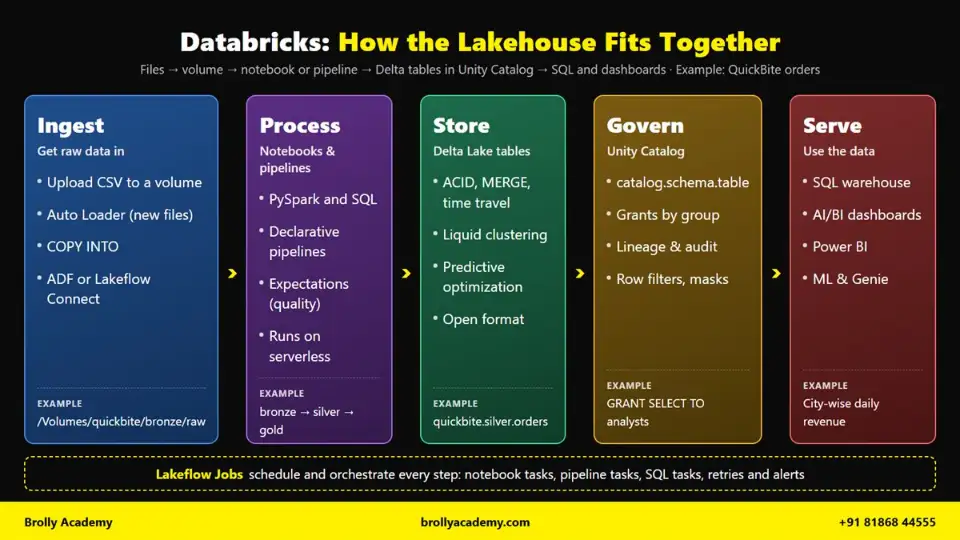
How the Databricks lakehouse fits together: ingest files into a volume, process them with notebooks and pipelines, store Delta tables, govern them with Unity Catalog and serve them with SQL warehouses and dashboards.
2. What is Databricks?
Short answer: Databricks is a cloud data and AI platform built on Apache Spark and Delta Lake. You use it to load raw data, clean it, store it as reliable tables and serve it to dashboards and machine learning models, all from one workspace. It follows the lakehouse idea: cheap data lake storage with the reliability and SQL speed of a data warehouse.
Databricks was started by the creators of Apache Spark. The company now calls the product its Data + AI Platform; older courses and blogs say Data Intelligence Platform. Both mean the same thing: Spark for processing, Delta Lake for reliable tables and Unity Catalog for governance, inside one browser-based workspace.
What is Databricks used for?
Five real jobs Databricks does in Indian companies every day:
- Batch ETL and data engineering. A food-delivery app loads millions of orders every night, removes duplicates, fixes city names and builds clean bronze, silver and gold tables.
- Data warehousing and BI. Analysts run SQL on a SQL warehouse and build city-wise revenue dashboards, or connect Power BI to gold tables.
- Streaming and near real-time data. A payments company reads events as they arrive and updates fraud and settlement tables within minutes.
- Machine learning and AI. Data scientists train delivery-time or demand-forecast models, track them with MLflow and serve them as endpoints.
- Governed data sharing. A bank gives each team access only to the tables and columns it needs, masks phone numbers and shares data with partners without copying files.
Databricks vs Azure Databricks: what is the difference?
They are the same core platform. Databricks runs on AWS, Microsoft Azure and Google Cloud. Azure Databricks is the Azure version, offered as a first-party Microsoft Azure service.
When an Indian job post says "Azure Databricks", it means Databricks plus Azure skills: ADLS Gen2, Entra ID, resource groups and usually Azure Data Factory for orchestration. Our Azure Data Factory tutorial covers the ADF side. Everything on this page works on both.
Is Databricks free?
Partly. You have three options:
- Databricks Free Edition. Free, for learning and non-commercial use. It replaced the old Community Edition, which Databricks retired in 2025. You get one serverless workspace with daily quotas.
- Azure Databricks free trial. When creating a workspace you can pick the Trial (Premium - 14-Days Free DBUs) tier where offered. Databricks usage is free for 14 days, but Azure resources such as VMs and storage are still billed.
- Paid (pay-as-you-go). You pay for Databricks Units (DBUs) used by compute, plus your cloud resources.
Free Edition is enough for Tutorials 1 to 3. Use Azure Databricks when you want to practise ADLS Gen2, Entra ID groups and ADF integration.
Is Databricks easy to learn, and how long does it take?
The basics are easy if you know SQL. Notebooks feel like Jupyter, and serverless compute means no cluster setup. The hard part is thinking in distributed data: big joins, incremental loads, small files and cost.
Here is a reasoned estimate, not a statistic, for someone with basic SQL and Python studying 1 to 2 hours a day:
Spark or data warehouse experience makes you faster; if SQL is new, add two or three weeks for SQL first. Our Azure data engineer roadmap shows where Databricks fits among the other skills.
What should you know before you start?
- SQL (must have). SELECT, WHERE, GROUP BY, JOIN and window functions like ROW_NUMBER.
- Basic Python (must have). Variables, lists, dictionaries, functions and reading error messages.
- Data basics (nice to have). CSV vs JSON vs Parquet, primary keys and what "incremental load" means.
- Cloud basics (Azure only). Subscriptions, resource groups and storage accounts.
You do not install anything on your laptop. Everything runs in the browser.
3. Databricks architecture and core concepts
Short answer: Databricks has a control plane (the web app and backend services Databricks runs) and a compute plane (the machines that process your data). Your data lives in cloud storage as Delta tables and files, organised and secured by Unity Catalog with a three-level name: catalog.schema.table. You write code in notebooks, run it on serverless or classic compute, and automate it with jobs and pipelines.
Control plane vs compute plane
Think of a restaurant. The control plane is the front desk and order system; the compute plane is the kitchen.
- Control plane. The web UI, notebook editor, job scheduler, Unity Catalog service and APIs. Databricks runs it in its own cloud account.
- Serverless compute plane. Serverless machines run inside the Databricks account, in your workspace's region. You never see or manage VMs.
- Classic compute plane. Classic cluster VMs run inside your Azure subscription, in your workspace's virtual network. You see them in Azure and pay Azure for them.
Workspace
A workspace is your team's Databricks environment: one URL with notebooks, folders, jobs, dashboards, compute and data. Companies often have separate dev, test and prod workspaces. Above workspaces is the account, where admins manage users, groups, Unity Catalog metastores and billing.
Compute types
Classic clusters also have an access mode: Standard (earlier "shared") for many users, or Dedicated (earlier "single user") for one user or group. Beginners should start with serverless; in Free Edition it is the only option.
Unity Catalog: the three-level namespace
Unity Catalog is the governance layer for all data and AI assets. Every table, view, volume and model has a three-part name:
catalog.schema.object
quickbite.bronze.orders_raw -> table
quickbite.silver.orders -> table
quickbite.bronze.raw -> volume (files)
The objects you secure with GRANT and REVOKE are called securables:
- Catalog. The top container, often one per environment, business unit or project.
- Schema. A folder inside a catalog (also called a database).
- Table. Rows and columns, stored as Delta Lake by default. Managed tables let Unity Catalog manage the storage location; external tables point to a path you manage.
- View. A saved query over tables. It stores no data.
- Volume. A governed folder for files such as CSV, JSON, images or PDFs, read with paths like /Volumes/quickbite/bronze/raw/.
- External location. A cloud storage path, such as an ADLS Gen2 container, registered with a storage credential. On Azure the credential usually uses an Access Connector for Azure Databricks, which holds a managed identity.
The metastore is the regional container above catalogs. Unity Catalog is enabled automatically for Azure Databricks workspaces created after 9 November 2023, so new workspaces already have one.
Delta Lake
Delta Lake is the default table format. A Delta table is a folder of Parquet data files plus a transaction log (the _delta_log folder) that records every change as a numbered version. The log gives you:
- ACID transactions. A failed write never leaves half-written data.
- Schema enforcement. A write with wrong columns fails instead of corrupting the table.
- Time travel. You can query or restore an older version.
- UPDATE, DELETE and MERGE. Real upserts on data lake files.
Notebooks, jobs, pipelines and dashboards
- Notebooks. Web documents with Python, SQL or Markdown cells, where you develop and explore.
- Lakeflow Jobs. The orchestrator (earlier called Workflows). A job runs tasks such as notebooks, pipelines or SQL on a schedule or trigger, with retries and alerts.
- Lakeflow pipelines. Declarative ETL (Lakeflow Spark Declarative Pipelines, earlier Delta Live Tables). You declare the tables you want; Databricks handles order, retries and data quality checks.
- AI/BI dashboards and Genie Agents. Dashboards for business users, and Genie Agents that answer data questions in plain English.
- Genie Code. The built-in AI helper (earlier Databricks Assistant) that writes, explains and fixes code.
How the pieces fit together
Here is the flow you will build for QuickBite, an assumed Indian food-delivery company:
Source files (orders CSV/JSON, restaurants CSV)
|
v
Volume /Volumes/quickbite/bronze/raw/ (governed landing folder)
|
v
Notebook or Lakeflow pipeline on serverless compute
| read -> clean -> deduplicate -> join -> aggregate
v
Delta tables in Unity Catalog
quickbite.bronze.orders_raw (raw, as received)
quickbite.silver.orders (clean, one row per order)
quickbite.silver.restaurants (clean restaurant master)
quickbite.gold.<tables> (business-ready aggregates)
|
v
SQL warehouse -> AI/BI dashboard, Genie, Power BI
Lakeflow Jobs schedule and monitor every step
Bronze keeps data as received, silver holds cleaned data and gold holds business aggregates. Our medallion architecture guide explains each layer in depth; here you build it hands-on.
4. Set up Databricks for free
Short answer: The fastest free option is Databricks Free Edition: sign up with email, Google or Microsoft and get a serverless workspace in minutes, with daily quotas. For Azure skills, create an Azure Databricks workspace on the Premium tier in Central India (South India does not support serverless today), check Unity Catalog and serverless, and set a budget alert before you run anything.
Option 1: Databricks Free Edition
Free Edition is the official free way to learn Databricks in 2026. You need no credit card and no cloud account.
- Search for "Databricks Free Edition" and open the sign-up page on databricks.com.
- Choose a sign-up method: email one-time passcode, Google or Microsoft.
- Databricks creates a workspace for you with serverless compute and default storage.
- Select Catalog in the left sidebar. You will see a ready-made catalog named workspace with a default schema.
Free Edition includes notebooks, SQL Editor, dashboards, Genie, Lakeflow jobs and pipelines, Unity Catalog and Genie Code. Limits you must know (October 2026):
Check the official Free Edition limitations page for the current list. For QuickBite's small files, the quota is plenty.
Which catalog should you use on Free Edition? This tutorial uses a catalog named quickbite, which keeps names clear and matches real projects. Free Edition runs on default storage, so CREATE CATALOG quickbite usually works. If it fails with an error about the metastore storage root, use the workspace catalog and replace quickbite with workspace everywhere. For example, quickbite.silver.orders becomes workspace.silver.orders. Nothing else changes.
Option 2: Azure Databricks workspace
You need an Azure subscription where you have the Contributor or Owner role. An Azure Free Trial subscription cannot create a Databricks workspace; switch it to pay-as-you-go first.
Two 2026 changes matter:
- Premium only. Since 1 April 2026, new workspaces must use the Premium tier, and remaining Standard workspaces were auto-upgraded on 1 October 2026. Premium is what Unity Catalog, serverless, SQL warehouses and Lakeflow pipelines need anyway.
- Workspace type. The portal offers Serverless (a serverless workspace with default storage, in Public Preview) or Hybrid (a classic workspace). Microsoft recommends serverless for the simplest quick start.
Step 1: Create a resource group
- In the Azure portal, search for Resource groups and select + Create.
- Choose your Subscription, enter rg-quickbite-dbx as the Resource group name and pick Central India as the Region.
- Select Review + create, then Create.
Why Central India? Microsoft's region table (October 2026) shows Central India supports serverless compute, serverless workspaces and default storage. South India does not support serverless compute.
Step 2: Create the workspace
- Select Create a resource > Analytics > Azure Databricks.
- On the Basics tab, choose your subscription and rg-quickbite-dbx.
- Enter dbw-quickbite-dev as the Workspace name and choose Central India.
- For Pricing Tier, choose Premium, or Trial (Premium - 14-Days Free DBUs) if it is offered.
- For Workspace type, choose Serverless. Choose Hybrid only if you need classic clusters or VNet settings.
- With Hybrid, Azure also creates a managed resource group for the workspace storage account and network. Never edit or delete resources inside it.
- Select Review + create, then Create. Deployment usually takes a few minutes; watch Notifications.
Microsoft's Azure Databricks workspace creation guide shows the same form.
Step 3: Launch the workspace
- Select Go to resource, then Launch Workspace.
- A tab opens at a URL ending in azuredatabricks.net, signed in with your Entra ID account. You are automatically a workspace admin.
Step 4: Check Unity Catalog and the default catalog
1. Select Catalog in the sidebar and look for a catalog named after your workspace. New workspaces get this workspace catalog automatically as the default catalog.
2. In a notebook (Tutorial 1 shows how), run the SQL below. A metastore ID means Unity Catalog is on.
-- Returns a metastore ID when Unity Catalog is enabled
SELECT CURRENT_METASTORE();
-- Returns the default catalog for this session
SELECT current_catalog();
On a Serverless workspace, CREATE CATALOG quickbite works on default storage. On a Hybrid workspace without a metastore storage root, it can fail unless you add a MANAGED LOCATION on your own ADLS Gen2, which needs an external location and Access Connector. For learning, simply use your workspace catalog in place of quickbite.
Step 5: Check serverless compute
Create a notebook and open the compute drop-down at the top right. You should see Serverless. If it is missing, check the two requirements: a serverless-supported region and Unity Catalog enabled.
Cost safety tips
- Create a budget alert. In Cost Management + Billing > Budgets, select + Add, set an amount such as ₹1,000 a month and add email alerts at 50%, 80% and 100%. A budget warns you; it does not stop spending.
- Prefer serverless. It bills only for work done, and serverless notebooks have a default execution timeout of 2.5 hours, which stops runaway queries.
- Set auto-termination to 15 to 20 minutes on any classic cluster, and keep SQL warehouse auto-stop low.
- Delete the resource group rg-quickbite-dbx when you finish.
A quick tour of the workspace
The left sidebar looks the same in Free Edition and Azure Databricks:
- + New. Create a notebook, query, dashboard, job, pipeline or compute, or Add or upload data.
- Workspace. Your folders, notebooks and Git folders (earlier Repos). Your personal folder is under Users.
- Recents. Objects you opened recently.
- Catalog. Catalog Explorer for catalogs, schemas, tables and volumes, with sample data, history, lineage and permissions.
- Jobs & Pipelines. Lakeflow Jobs, Lakeflow pipelines and Lakeflow Connect ingestion.
- Compute. Clusters, SQL warehouses and pools (classic options are limited in Free Edition).
- SQL group: SQL Editor, Queries, Dashboards, Genie Agents, Alerts, Query History and SQL Warehouses.
- Data Engineering group: Runs and Data Ingestion.
- AI/ML group: Playground, Agents, Experiments, Features, Models and Serving.
The home page also has Ask Genie, where you search objects, ask data questions or start a Genie Code conversation.
5. Tutorial 1: Your first notebook — load a CSV into a Delta table
Short answer: Create the quickbite catalog with bronze, silver and gold schemas and a volume, upload a small orders CSV, and read it in a notebook on serverless compute with spark.read. Use an explicit schema, add ingestion columns and save it as the Delta table quickbite.bronze.orders_raw with saveAsTable. Then query it with SQL in the same notebook.
Step 1: Create the catalog, schemas and volume
1. Select SQL Editor in the sidebar.
2. Pick your running SQL warehouse in the drop-down at the top (Free Edition has one ready).
3. Paste the SQL below and select Run all.
CREATE CATALOG IF NOT EXISTS quickbite
COMMENT 'QuickBite food-delivery tutorial';
CREATE SCHEMA IF NOT EXISTS quickbite.bronze COMMENT 'Raw data as received';
CREATE SCHEMA IF NOT EXISTS quickbite.silver COMMENT 'Cleaned, one row per entity';
CREATE SCHEMA IF NOT EXISTS quickbite.gold COMMENT 'Business-ready aggregates';
-- A managed volume for raw files
CREATE VOLUME IF NOT EXISTS quickbite.bronze.raw
COMMENT 'Landing folder for QuickBite source files';
Refresh Catalog. You should see quickbite with three schemas and the volume raw under bronze. If CREATE CATALOG failed, use workspace (Free Edition) or your workspace catalog (Azure) and run only the schema and volume commands with that name.
Step 2: Create the sample orders file
Paste the data below into Notepad and save it as orders_2026-10-18.csv. It has three deliberate problems for Tutorial 2: a duplicate order, a missing amount and a messy city name.
order_id,order_ts,customer_id,restaurant_id,city,cuisine,amount_inr,payment_mode,status
QB1001,2026-10-18 12:05:00,C501,R01,Hyderabad,Biryani,450.00,UPI,DELIVERED
QB1002,2026-10-18 12:40:00,C502,R02,Bengaluru,South Indian,220.50,CARD,DELIVERED
QB1003,2026-10-18 13:15:00,C503,R03,Mumbai,North Indian,610.00,COD,CANCELLED
QB1004,2026-10-18 19:30:00,C501,R01,Hyderabad,Biryani,380.00,UPI,DELIVERED
QB1005,2026-10-18 20:10:00,C504,R04,Chennai,Chinese,,UPI,DELIVERED
QB1006,2026-10-18 20:45:00,C505,R05, hyderabad ,Pizza,799.00,WALLET,PLACED
QB1006,2026-10-18 20:45:00,C505,R05, hyderabad ,Pizza,799.00,WALLET,PLACED
QB1007,2026-10-18 21:05:00,C506,R02,Bengaluru,South Indian,180.00,CARD,DELIVERED
Step 3: Upload the file to the volume
- Select + New > Add or upload data, then Upload files to a volume.
- Under Files, select browse and choose orders_2026-10-18.csv.
- Under Destination volume, browse to quickbite > bronze > raw, select Create directory, name it orders and choose it.
- Select Upload.
In Catalog, open the orders folder, select the three-dot menu next to the file and choose Copy path. You get /Volumes/quickbite/bronze/raw/orders/orders_2026-10-18.csv. UI uploads allow files up to 5 GB.
Step 4: Create a notebook and attach serverless compute
- Select + New > Notebook.
- Rename Untitled Notebook to 01_load_orders_bronze.
- Check that the default language next to the title is Python.
- In the compute drop-down at the top right, select Serverless.
Step 5: Python cells, SQL cells and magic commands
Run one cell with Shift + Enter, or everything with Run all. The notebook language is Python, but a magic command on the first line switches a cell's language:
- %sql runs the cell as Spark SQL.
- %md renders Markdown notes and headings.
- %python switches to Python in a SQL notebook.
- %pip installs a notebook-scoped Python library.
- %run runs another notebook, such as a shared config notebook.
Start every notebook with a Markdown cell that explains it:
%md
QuickBite - Bronze load
Reads raw order CSVs from /Volumes/quickbite/bronze/raw/orders/
and writes the Delta table quickbite.bronze.orders_raw.
Step 6: Read the CSV with spark.read
The quick way is inferSchema: Spark guesses each column type, and display() shows a sortable table with a chart option.
from pyspark.sql import functions as F
orders_path = "/Volumes/quickbite/bronze/raw/orders/"
df_infer = (spark.read
.format("csv")
.option("header", "true") # first line has column names
.option("inferSchema", "true") # let Spark guess types
.load(orders_path))
df_infer.printSchema()
display(df_infer)
You will see 8 rows, with order_ts guessed as a timestamp and amount_inr as a double. Guessing is fine for exploring, but Spark reads the data an extra time to guess, and the guess can change when a new file has odd values.
Step 7: Read with an explicit schema
In real projects, define the schema yourself. It is faster, and a bad file cannot silently change your column types:
orders_schema = """
order_id STRING, order_ts TIMESTAMP, customer_id STRING,
restaurant_id STRING, city STRING, cuisine STRING,
amount_inr DECIMAL(10,2), payment_mode STRING, status STRING
"""
df_orders = (spark.read
.format("csv")
.option("header", "true")
.schema(orders_schema)
.load(orders_path))
display(df_orders)
Use DECIMAL(10,2) for money, not DOUBLE. Decimals keep exact paise values, so totals match finance reports.
Step 8: Add ingestion columns and write the bronze table
Bronze keeps data as received, plus audit columns for load time and source file. The hidden _metadata column gives you the file path:
df_bronze = (df_orders
.withColumn("_ingested_at", F.current_timestamp())
.withColumn("_source_file", F.col("_metadata.file_path")))
(df_bronze.write
.mode("overwrite") # rerun-safe for this tutorial
.saveAsTable("quickbite.bronze.orders_raw"))
print("Rows written:", spark.read.table("quickbite.bronze.orders_raw").count())
The output is Rows written: 8. You just created a managed Delta table with the nine source columns plus _ingested_at and _source_file; Unity Catalog chose the storage path. In Catalog > orders_raw, check the Overview, Sample Data and History tabs. History already shows version 0.
Step 9: Query the table with SQL
Add a cell that starts with %sql:
%sql
SELECT city,
COUNT(order_id) AS orders,
SUM(amount_inr) AS total_inr
FROM quickbite.bronze.orders_raw
GROUP BY city
ORDER BY total_inr DESC;
Notice two Hyderabad rows: Hyderabad and hyderabad . Bronze keeps messy data as received on purpose, so you can always reprocess from the original. You can also run SQL from Python with spark.sql, which returns a DataFrame:
summary = spark.sql("""
SELECT status, COUNT(1) AS orders
FROM quickbite.bronze.orders_raw
GROUP BY status
""")
display(summary)
Common errors in your first notebook
- PATH_NOT_FOUND. Volume paths are case-sensitive and start with /Volumes/. Use Copy path from Catalog. Avoid old dbfs:/FileStore/ paths; DBFS access is limited on serverless.
- One big column, or names like _c0 and _c1. The header option is missing or the delimiter differs. Set .option("header", "true"), and add .option("sep", ";") for non-comma files.
- TABLE_OR_VIEW_NOT_FOUND or SCHEMA_NOT_FOUND. Usually a catalog mix-up, such as workspace in one cell and quickbite in another. Always use three-level names and check with SHOW SCHEMAS IN quickbite.
- CREATE CATALOG fails. The workspace has no default storage for new catalogs, or you lack the CREATE CATALOG privilege. Use workspace (Free Edition) or your workspace catalog (Azure), or ask an admin.
- Errors from .cache(), .persist(), RDDs or spark.sparkContext. Serverless supports only Spark Connect APIs, so caching APIs, CACHE TABLE and RDDs are not supported. Remove the call, or use a classic cluster on Azure.
6. Tutorial 2: Transform data with PySpark and SQL
Short answer: Read the bronze table, then trim, cast and derive columns, handle nulls, remove duplicate orders and join with a restaurants table. Aggregate city-wise revenue with groupBy, find the top 3 restaurants per city with a window function, and repeat the logic in SQL with a temp view. Finally, write the clean result to quickbite.silver.orders.
Create a notebook named 02_transform_orders_silver and attach Serverless.
Step 1: Load the restaurants master
Save this as restaurants.csv and upload it to a new restaurants directory in the same volume, as in Tutorial 1. The names are made up.
restaurant_id,name,city,cuisine,rating
R01,Nawab Biryani Point,Hyderabad,Biryani,4.4
R02,Udupi Tiffin Corner,Bengaluru,South Indian,4.2
R03,Bombay Tadka House,Mumbai,North Indian,4.0
R04,Marina Dragon Wok,Chennai,Chinese,3.9
R05,Slice Street Pizza,Hyderabad,Pizza,4.1
The master is small and clean, so write it straight to silver:
from pyspark.sql import functions as F
rest_schema = "restaurant_id STRING, name STRING, city STRING, cuisine STRING, rating DOUBLE"
df_rest = (spark.read.format("csv")
.option("header", "true")
.schema(rest_schema)
.load("/Volumes/quickbite/bronze/raw/restaurants/"))
df_rest.write.mode("overwrite").saveAsTable("quickbite.silver.restaurants")
display(spark.read.table("quickbite.silver.restaurants"))
Step 2: Select, clean and derive columns
trim removes spaces, initcap turns "hyderabad" into "Hyderabad", upper standardises status codes and to_date derives a date for daily reports:
bronze = spark.read.table("quickbite.bronze.orders_raw")
clean = (bronze
.select("order_id", "order_ts", "customer_id", "restaurant_id",
"city", "cuisine", "amount_inr", "payment_mode", "status")
.withColumn("city", F.initcap(F.trim(F.col("city"))))
.withColumn("status", F.upper(F.trim(F.col("status"))))
.withColumn("amount_inr", F.col("amount_inr").cast("decimal(10,2)"))
.withColumn("order_date", F.to_date(F.col("order_ts")))
.filter(F.col("order_id").isNotNull()))
display(clean)
Two serverless facts to remember:
- ANSI mode is on. An invalid cast, such as "abc" to a number, raises an error instead of returning null. For raw strings, use F.expr("try_cast(amount_text AS DECIMAL(10,2))"), which returns null for bad values.
- The session time zone is UTC. Add spark.conf.set("spark.sql.session.timeZone", "Asia/Kolkata") at the top when you work with Indian times or current_timestamp().
Step 3: Handle nulls
QB1005 has no amount, so it cannot count as revenue; drop it. A missing payment mode is less serious; fill it with "UNKNOWN":
print("Null amounts:", clean.filter(F.col("amount_inr").isNull()).count())
clean = (clean
.fillna({"payment_mode": "UNKNOWN"})
.dropna(subset=["amount_inr"]))
In real projects, write dropped rows to a quarantine table so someone can fix the source.
Step 4: Remove duplicates
QB1006 arrived twice. dropDuplicates on the business key keeps one row per order:
before = clean.count()
clean = clean.dropDuplicates(["order_id"])
after = clean.count()
print(f"Before: {before}, after: {after}") # expected: 7 and 6
Eight raw rows, minus one null amount and one duplicate, leaves 6 clean orders. When duplicates differ, for example two statuses for one order, rank them with row_number() by timestamp and keep row 1.
Step 5: Join with restaurants
Select only the columns you need from the right side, so you do not get two city columns:
rest = (spark.read.table("quickbite.silver.restaurants")
.select("restaurant_id",
F.col("name").alias("restaurant_name"),
"rating"))
enriched = clean.join(rest, on="restaurant_id", how="left")
display(enriched)
A left join never loses an order just because its restaurant is missing from the master. Orders with a null restaurant_name point to a master data problem.
Step 6: City-wise revenue with groupBy and agg
city_revenue = (enriched
.filter(F.col("status") == "DELIVERED")
.groupBy("city")
.agg(F.count("order_id").alias("orders"),
F.sum("amount_inr").alias("revenue_inr"),
F.round(F.avg("amount_inr"), 2).alias("avg_order_inr"))
.orderBy(F.desc("revenue_inr")))
display(city_revenue)
Expected: Hyderabad with 2 orders and ₹830.00, then Bengaluru with 2 orders and ₹400.50. Mumbai's only order was cancelled, and Chennai's had no amount.
Step 7: Top 3 restaurants per city with a window function
A window function ranks rows inside a group without collapsing them:
from pyspark.sql.window import Window
rest_revenue = (enriched
.filter(F.col("status") == "DELIVERED")
.groupBy("city", "restaurant_id", "restaurant_name")
.agg(F.sum("amount_inr").alias("revenue_inr")))
w = Window.partitionBy("city").orderBy(F.desc("revenue_inr"))
top3 = (rest_revenue
.withColumn("city_rank", F.dense_rank().over(w))
.filter(F.col("city_rank") <= 3))
display(top3)
dense_rank gives tied restaurants the same rank. Use row_number when you need exactly one row per position, such as the latest record per order.
Step 8: The same logic in SQL with a temp view
Register the DataFrame as a temporary view so SQL can query it. A temp view lives only in your session and stores no data. Global temp views are not supported on serverless.
clean.createOrReplaceTempView("orders_clean")
# Quick check that SQL can see the view
display(spark.sql("SELECT COUNT(1) AS row_count FROM orders_clean"))
Now one %sql cell does the join, aggregation and window:
%sql
WITH rest_revenue AS (
SELECT o.city, o.restaurant_id, r.name AS restaurant_name,
SUM(o.amount_inr) AS revenue_inr
FROM orders_clean o
LEFT JOIN quickbite.silver.restaurants r
ON o.restaurant_id = r.restaurant_id
WHERE o.status = 'DELIVERED'
GROUP BY o.city, o.restaurant_id, r.name
)
SELECT city, restaurant_name, revenue_inr,
DENSE_RANK() OVER (PARTITION BY city ORDER BY revenue_inr DESC) AS city_rank
FROM rest_revenue
QUALIFY DENSE_RANK() OVER (PARTITION BY city ORDER BY revenue_inr DESC) <= 3
ORDER BY city, city_rank;
QUALIFY filters on a window result without a subquery. From Python, spark.sql runs the same SQL and returns a DataFrame:
city_sql = spark.sql("""
SELECT city, COUNT(order_id) AS orders, SUM(amount_inr) AS revenue_inr
FROM orders_clean
WHERE status = 'DELIVERED'
GROUP BY city
""")
display(city_sql)
Step 9: Write the silver orders table
Fix the column order so downstream readers always see a stable schema:
silver_cols = ["order_id", "order_ts", "order_date", "customer_id",
"restaurant_id", "city", "cuisine", "amount_inr",
"payment_mode", "status"]
(clean.select(silver_cols)
.write
.mode("overwrite")
.option("overwriteSchema", "true")
.saveAsTable("quickbite.silver.orders"))
display(spark.sql("SELECT COUNT(1) AS row_count FROM quickbite.silver.orders"))
You now have quickbite.silver.orders (6 rows) and quickbite.silver.restaurants (5 rows). Gold tables come later in this course with a declarative pipeline.
PySpark vs SQL: which to use
Both run on the same Spark engine with the same performance for the same logic. Choose by task:
A practical rule: SQL for the business logic, PySpark for orchestration, reuse and file handling. Interviewers often ask for both versions, so practise both with our PySpark and Databricks interview questions.
10 handy PySpark functions
7. Tutorial 3: Delta Lake essentials — MERGE, time travel and optimization
Short answer: Use MERGE to upsert changed and new orders into quickbite.silver.orders, and DESCRIBE HISTORY to see every version. Query old versions with VERSION AS OF or TIMESTAMP AS OF, undo mistakes with RESTORE, add columns safely with mergeSchema and block bad rows with NOT NULL and CHECK constraints. Then use liquid clustering (CLUSTER BY), OPTIMIZE and VACUUM, or let predictive optimization do the maintenance.
Create a notebook named 03_delta_essentials, attach Serverless and set its default language to SQL with the drop-down next to the title. Then SQL cells need no %sql; Python cells need %python.
Step 1: Upsert changed orders with MERGE
QuickBite's app sends updates: QB1006 changed from PLACED to DELIVERED, and a new order QB1008 arrived. A plain INSERT would duplicate QB1006. MERGE updates matching rows and inserts new ones in one atomic transaction. First, create the updates as a temp view with silver's columns:
CREATE OR REPLACE TEMP VIEW order_updates AS
SELECT order_id, order_ts, CAST(order_ts AS DATE) AS order_date,
customer_id, restaurant_id, city, cuisine,
CAST(amount_inr AS DECIMAL(10,2)) AS amount_inr,
payment_mode, status
FROM VALUES
('QB1006', TIMESTAMP'2026-10-18 20:45:00', 'C505', 'R05', 'Hyderabad',
'Pizza', 799.00, 'WALLET', 'DELIVERED'),
('QB1008', TIMESTAMP'2026-10-19 13:20:00', 'C507', 'R03', 'Mumbai',
'North Indian', 540.00, 'UPI', 'DELIVERED')
AS t(order_id, order_ts, customer_id, restaurant_id, city, cuisine,
amount_inr, payment_mode, status);
Now merge it into silver:
MERGE INTO quickbite.silver.orders AS t
USING order_updates AS s
ON t.order_id = s.order_id
WHEN MATCHED AND t.status <> s.status THEN
UPDATE SET t.status = s.status
WHEN NOT MATCHED THEN
INSERT *;
The result shows num_updated_rows 1 and num_inserted_rows 1. Silver now has 7 orders, and QB1006 is DELIVERED. Three MERGE rules:
- One source row per key. If two source rows match one target row, MERGE fails. Deduplicate the source first.
- Add change conditions. AND t.status <> s.status skips unchanged rows, so fewer files are rewritten.
- WHEN NOT MATCHED BY SOURCE deletes or flags target rows missing from the source, which helps with full snapshot loads.
Step 2: See every change with DESCRIBE HISTORY
-- Full history, newest first
DESCRIBE HISTORY quickbite.silver.orders;
-- Only the latest operation
DESCRIBE HISTORY quickbite.silver.orders LIMIT 1;
You will see version 0 (the Tutorial 2 write) and version 1 (the MERGE), each with timestamp, user, operation and operationMetrics. If you ran Tutorial 2 more than once, your numbers will be higher, so always read your own history. The History tab in Catalog shows the same data.
Step 3: Time travel with VERSION AS OF and TIMESTAMP AS OF
-- Before the MERGE (version 0)
SELECT order_id, status
FROM quickbite.silver.orders VERSION AS OF 0
WHERE order_id = 'QB1006';
-- Current version
SELECT order_id, status
FROM quickbite.silver.orders
WHERE order_id = 'QB1006';
-- As of a point in time (use a time after the table was created)
SELECT COUNT(1) AS orders
FROM quickbite.silver.orders TIMESTAMP AS OF '2026-10-20 10:00:00';
Version 0 shows PLACED; the current table shows DELIVERED. In PySpark, use a reader option:
%python
v0 = (spark.read
.option("versionAsOf", 0)
.table("quickbite.silver.orders"))
display(v0)
Time travel is for debugging, audits and fixing mistakes, not long-term backup. By default you can go back about 7 days, set by the delta.deletedFileRetentionDuration table property.
Step 4: Undo a mistake with RESTORE
A teammate runs a wrong DELETE and removes all Mumbai orders:
-- The mistake
DELETE FROM quickbite.silver.orders WHERE city = 'Mumbai';
-- Find the last good version (the one before the DELETE)
DESCRIBE HISTORY quickbite.silver.orders LIMIT 3;
The version before the DELETE is the good one (version 1 if your history matches this tutorial):
RESTORE TABLE quickbite.silver.orders TO VERSION AS OF 1;
SELECT city, COUNT(1) AS orders
FROM quickbite.silver.orders
GROUP BY city;
Mumbai is back with 2 orders (QB1003 and QB1008). RESTORE adds a new version instead of erasing history. It needs MODIFY permission and works only while VACUUM has not removed the old files.
Step 5: Schema evolution with mergeSchema
QuickBite starts sending a new delivery_mins column. Delta enforces the schema, so a write with an unknown column fails with a schema mismatch error. When the column is expected, allow it with mergeSchema:
%python
new_batch = spark.sql("""
SELECT 'QB1009' AS order_id, TIMESTAMP'2026-10-19 21:10:00' AS order_ts,
DATE'2026-10-19' AS order_date, 'C508' AS customer_id,
'R04' AS restaurant_id, 'Chennai' AS city, 'Chinese' AS cuisine,
CAST(315.00 AS DECIMAL(10,2)) AS amount_inr, 'UPI' AS payment_mode,
'DELIVERED' AS status, 32 AS delivery_mins
""")
(new_batch.write
.mode("append")
.option("mergeSchema", "true")
.saveAsTable("quickbite.silver.orders"))
Older rows show null in delivery_mins, and QB1009 shows 32. For MERGE, use MERGE WITH SCHEMA EVOLUTION INTO. Enable evolution per write, never as a blanket setting, or a typo in a source file becomes a new column.
Step 6: Protect data with NOT NULL and CHECK constraints
Constraints stop bad rows at write time. Databricks checks existing rows before adding a constraint, so these succeed only because silver is clean:
ALTER TABLE quickbite.silver.orders ALTER COLUMN order_id SET NOT NULL;
ALTER TABLE quickbite.silver.orders ALTER COLUMN amount_inr SET NOT NULL;
ALTER TABLE quickbite.silver.orders
ADD CONSTRAINT valid_amount CHECK (amount_inr > 0);
ALTER TABLE quickbite.silver.orders
ADD CONSTRAINT valid_status CHECK (status IN ('PLACED', 'DELIVERED', 'CANCELLED'));
Test it with a bad row:
INSERT INTO quickbite.silver.orders (order_id, order_ts, order_date, customer_id,
restaurant_id, city, cuisine, amount_inr, payment_mode, status)
VALUES ('QB1010', TIMESTAMP'2026-10-19 22:00:00', DATE'2026-10-19', 'C509',
'R02', 'Bengaluru', 'South Indian', -50.00, 'UPI', 'DELIVERED');
The insert fails with a CHECK constraint violation on valid_amount, and the whole transaction is rejected. To drop or quarantine bad rows instead of failing, use pipeline expectations, covered later in this course. Primary and foreign keys also exist, but they are informational and not enforced.
Step 7: Liquid clustering with CLUSTER BY
Liquid clustering organises files by the columns you filter on most, so queries skip files they do not need. Databricks recommends it for all new tables in place of partitioning and ZORDER, and you can change keys later without rewriting the table. QuickBite reports filter by date and city:
ALTER TABLE quickbite.silver.orders CLUSTER BY (order_date, city);
-- Recluster existing data once after setting or changing keys
OPTIMIZE quickbite.silver.orders FULL;
DESCRIBE DETAIL quickbite.silver.orders;
DESCRIBE DETAIL shows clusteringColumns as order_date and city. Rules to remember:
- Use up to four keys, chosen from columns in WHERE filters.
- Liquid clustering cannot be combined with partitioning or ZORDER on one table.
- For new tables, add CLUSTER BY (order_date, city) to CREATE TABLE, or .clusterBy("order_date", "city") on the DataFrame writer.
- On managed tables, CLUSTER BY AUTO lets Databricks choose keys from real query patterns.
A 7-row table will not get faster, but the habit pays off when orders reach crores of rows.
Step 8: OPTIMIZE to compact small files
Frequent small writes, like hourly loads, create many small files, which are slow to read. OPTIMIZE rewrites them into fewer, larger files and incrementally clusters new data:
OPTIMIZE quickbite.silver.orders;
-- Check what OPTIMIZE did
DESCRIBE HISTORY quickbite.silver.orders LIMIT 1;
The history row shows metrics such as numRemovedFiles and numAddedFiles. OPTIMIZE changes only the file layout, never the data, so it is safe while others read the table.
Step 9: VACUUM and retention
MERGE, DELETE, OPTIMIZE and RESTORE leave old files behind for time travel. VACUUM deletes unreferenced files older than the retention threshold, 7 days by default. Always preview first:
-- Preview what would be deleted
VACUUM quickbite.silver.orders DRY RUN;
-- Delete unreferenced files older than the retention threshold
VACUUM quickbite.silver.orders;
-- Keep 30 days of time travel for this table instead of 7
ALTER TABLE quickbite.silver.orders
SET TBLPROPERTIES ('delta.deletedFileRetentionDuration' = 'interval 30 days');
On a fresh table, DRY RUN usually lists nothing. After VACUUM, you cannot time travel or RESTORE to versions whose files were removed, so longer retention means more history but more storage cost. Never go below 7 days, because running jobs may still need recent files. Table history itself is kept for 30 days by default (delta.logRetentionDuration).
Predictive optimization: let Databricks do the maintenance
Predictive optimization automatically runs OPTIMIZE (including incremental clustering), VACUUM and ANALYZE on Unity Catalog managed tables when it predicts a benefit. It is on by default for accounts created on or after 11 November 2024, and Databricks planned to enable older accounts by August 2026. Check it:
-- Look for the Predictive Optimization field in the output
DESCRIBE CATALOG EXTENDED quickbite;
DESCRIBE TABLE EXTENDED quickbite.silver.orders;
Three points to remember:
- It works only on managed tables, not external tables.
- It runs on serverless jobs compute and is billed under the serverless jobs SKU, so you may see small charges without running a job.
- When it is on, drop your own scheduled OPTIMIZE jobs, and set delta.deletedFileRetentionDuration first if you need longer time travel.
You now have bronze and silver Delta tables you can update, audit, roll back, protect and tune: the core skill set behind every Databricks data engineering project.
8. Tutorial 4: Incremental ingestion with Auto Loader
Short answer: Auto Loader is the Databricks feature that picks up only the new files that land in a folder, using the cloudFiles source in Structured Streaming. It remembers which files it has already loaded in a checkpoint, so every run loads each file exactly once. Run it with trigger(availableNow=True) to process all new files and then stop, which is the pattern that works on serverless compute.
In Tutorials 1 to 3 you loaded one CSV file by hand. Real systems do not work like that. QuickBite's order app writes a new JSON file every hour with the latest order events: new orders, and status changes such as PLACED to DELIVERED or CANCELLED. You need a process that loads only the new files, never loads a file twice, and does not break when the app team adds a column.
Step 1: Prepare the landing folder
Each JSON file holds one order event per line. The events carry the same nine order columns you already know, plus one extra field, updated_ts, which records when the status last changed. You will use it in Tutorial 5.
Save these lines as orders_2026-10-20_09.json on your laptop:
{"order_id":"QB1009","order_ts":"2026-10-20 09:05:11","customer_id":"C210","restaurant_id":"R04","city":"Hyderabad","cuisine":"Biryani","amount_inr":420.0,"payment_mode":"UPI","status":"PLACED","updated_ts":"2026-10-20 09:05:11"}
{"order_id":"QB1010","order_ts":"2026-10-20 09:12:40","customer_id":"C114","restaurant_id":"R02","city":"Bengaluru","cuisine":"South Indian","amount_inr":260.0,"payment_mode":"CARD","status":"PLACED","updated_ts":"2026-10-20 09:12:40"}
{"order_id":"QB1009","order_ts":"2026-10-20 09:05:11","customer_id":"C210","restaurant_id":"R04","city":"Hyderabad","cuisine":"Biryani","amount_inr":420.0,"payment_mode":"UPI","status":"DELIVERED","updated_ts":"2026-10-20 09:48:02"}
{"order_id":"QB1011","order_ts":"2026-10-20 09:20:03","customer_id":"C305","restaurant_id":"R01","city":"Mumbai","cuisine":"North Indian","amount_inr":610.0,"payment_mode":"COD","status":"CANCELLED","updated_ts":"2026-10-20 09:31:15"}
Now upload it into a subfolder of the volume you created in Tutorial 1:
- In the sidebar, click Catalog.
- Open quickbite > bronze > Volumes > raw.
- Click Create directory and name it orders_json.
- Open the orders_json folder and click Upload to this volume.
- Drop the JSON file and click Upload.
The full path of the folder is now /Volumes/quickbite/bronze/raw/orders_json/. Keep the checkpoint in a different folder, never inside the folder Auto Loader is watching. If you use Free Edition with the workspace catalog, replace quickbite with workspace in every path and table name in this part.
Step 2: Write the Auto Loader stream
Create a new notebook called 04_autoloader_orders, attach Serverless compute, and run this cell:
from pyspark.sql import functions as F
source_path = "/Volumes/quickbite/bronze/raw/orders_json/"
checkpoint = "/Volumes/quickbite/bronze/raw/_checkpoints/orders_events/"
orders_stream = (
spark.readStream.format("cloudFiles")
.option("cloudFiles.format", "json")
.option("cloudFiles.schemaLocation", checkpoint)
.option("cloudFiles.inferColumnTypes", "true")
.option("cloudFiles.schemaEvolutionMode", "addNewColumns")
.load(source_path)
.withColumn("source_file", F.col("_metadata.file_path"))
.withColumn("ingested_at", F.current_timestamp())
)
Here is what each option does:
Step 3: Write to a Delta table with availableNow
Add a second cell that writes the stream to a bronze table:
query = (
orders_stream.writeStream
.option("checkpointLocation", checkpoint)
.option("mergeSchema", "true")
.trigger(availableNow=True)
.toTable("quickbite.bronze.orders_events")
)
query.awaitTermination()
display(spark.table("quickbite.bronze.orders_events"))
You see four rows plus the source_file, ingested_at and _rescued_data columns. Now upload a second file, say orders_2026-10-20_10.json, with two new events, and run both cells again. Only the two new rows are added. The first file is skipped because the checkpoint already lists it.
Three rules to remember:
- Always set trigger(availableNow=True) on serverless. It processes every waiting file and stops. Serverless does not support processingTime or continuous triggers, which Spark would use by default.
- The checkpoint is the stream's memory. Delete it and Auto Loader reloads every file as new.
- One checkpoint per target table. Never share one between two streams.
Schema evolution and rescued data
Suppose the app team adds a coupon_code field. With addNewColumns, Auto Loader updates the saved schema and stops the stream with an UnknownFieldException. The next run continues with the new column. This one-time stop is by design, so production streams run as jobs with retries (Tutorial 6).
The four schema evolution modes:
The _rescued_data column holds a JSON string with values that did not fit the schema, plus the source file path. Keep it in bronze, and query rows where it is not null to find bad records without losing them.
If inference guesses a type wrong, give a hint instead of a full schema:
.option("cloudFiles.schemaHints", "amount_inr DECIMAL(10,2), order_ts TIMESTAMP, updated_ts TIMESTAMP")
Auto Loader vs COPY INTO
COPY INTO is a SQL command that also loads only new files. Files that were loaded earlier are skipped on later runs, so you can schedule it again and again safely.
CREATE TABLE IF NOT EXISTS quickbite.bronze.orders_copy;
COPY INTO quickbite.bronze.orders_copy
FROM '/Volumes/quickbite/bronze/raw/orders_json/'
FILEFORMAT = JSON
FORMAT_OPTIONS ('mergeSchema' = 'true')
COPY_OPTIONS ('mergeSchema' = 'true');
How to choose:
In practice, use Auto Loader (or a pipeline streaming table, which uses it inside) for folders that keep growing, and COPY INTO for simple, repeatable SQL loads. For production, Databricks recommends file notification mode with file events, which avoids listing the whole folder each run; for learning, the default directory listing is fine.
Reading from ADLS Gen2 on Azure through an external location
On Azure Databricks, the files usually land in Azure Data Lake Storage Gen2, not in a managed volume. With Unity Catalog you never paste storage keys into notebooks. Instead, an admin sets up three objects once:
1. Access Connector for Azure Databricks. An Azure resource with a managed identity. In the Azure portal, give this identity the Storage Blob Data Contributor role on the storage account.
2. Storage credential. A Unity Catalog object that wraps the managed identity. Create it in Catalog > External data > Credentials.
3. External location. A Unity Catalog object that joins a storage path with the credential.
CREATE EXTERNAL LOCATION IF NOT EXISTS quickbite_landing
URL 'abfss://landing@quickbitelake.dfs.core.windows.net/orders'
WITH (STORAGE CREDENTIAL quickbite_access_connector)
COMMENT 'QuickBite order landing zone';
GRANT READ FILES ON EXTERNAL LOCATION quickbite_landing TO `data_engineers`;
After that, point Auto Loader at the abfss:// path, or better, create an external volume on that path and keep using /Volumes/... paths in your code. Microsoft's page on connecting to cloud object storage with Unity Catalog explains the full model, including why plain Azure Blob Storage is not supported for Unity Catalog data.
If your source is a database or a SaaS app rather than files, look at Lakeflow Connect, the managed ingestion connectors in Databricks. Auto Loader is for files.
9. Tutorial 5: Build a bronze-silver-gold pipeline with Lakeflow Declarative Pipelines
Short answer: Lakeflow Spark Declarative Pipelines (earlier called Delta Live Tables) let you declare tables as Python or SQL functions, and Databricks works out the order, runs them, retries failures and tracks data quality for you. In Python you import from pyspark import pipelines as dp, use @dp.table for streaming tables, @dp.materialized_view for aggregates, @dp.expect_or_drop for quality rules and dp.create_auto_cdc_flow to keep the latest version of each record.
In Tutorial 4 you managed the stream, checkpoint and trigger yourself. For many tables with dependencies, quality checks and change data capture, a declarative pipeline is far less code: you describe what each table contains, and the pipeline decides how and in what order to build it.
You will build this flow:
/Volumes/quickbite/bronze/raw/orders_json/ (hourly JSON files)
| Auto Loader
v
quickbite.bronze.orders_ingest streaming table, raw events
| expectations (drop bad rows)
v
quickbite.silver.orders_clean streaming table, typed and validated
| AUTO CDC (latest status per order_id)
v
quickbite.silver.orders_current streaming table, one row per order
| aggregate
v
quickbite.gold.city_daily_revenue materialized view, city-wise daily revenue
The pipeline creates its own tables with new names. A pipeline cannot write into tables that it does not manage, so leave the quickbite.silver.orders table from Tutorials 2 and 3 as it is. If you want to understand why data moves through these three layers, read our guide to medallion architecture.
Step 1: Create the pipeline
- In the sidebar, click + New > ETL pipeline. (You can also go to Jobs & Pipelines and use the create button there.)
- The Lakeflow Pipelines Editor opens with a default name. Rename it to quickbite_orders_pipeline.
- Next to the name, set the default catalog to quickbite and the default schema to silver.
- Choose Python as the language for the first source file and start with an empty file.
New pipelines use Unity Catalog and serverless compute by default. Inside a pipeline you do not set a checkpoint or schema location for Auto Loader; the pipeline manages both.
Step 2: Bronze streaming table with Auto Loader
Paste this into the transformation file:
from pyspark import pipelines as dp
from pyspark.sql import functions as F
@dp.table(
name="quickbite.bronze.orders_ingest",
comment="Raw QuickBite order events loaded by Auto Loader",
)
def orders_ingest():
return (
spark.readStream.format("cloudFiles")
.option("cloudFiles.format", "json")
.option("cloudFiles.inferColumnTypes", "true")
.load("/Volumes/quickbite/bronze/raw/orders_json/")
.withColumn("source_file", F.col("_metadata.file_path"))
)
@dp.table on a function that returns a streaming DataFrame creates a streaming table. Each run reads only new files.
Step 3: Silver table with expectations
Expectations are data quality rules on a table. Each rule has a name and a SQL condition. You choose what happens to rows that fail:
Add the silver table below the bronze one:
@dp.table(name="quickbite.silver.orders_clean", comment="Typed, validated order events")
@dp.expect_or_drop("valid_order_id", "order_id IS NOT NULL")
@dp.expect_or_drop("positive_amount", "amount_inr > 0")
@dp.expect("known_status", "status IN ('PLACED', 'DELIVERED', 'CANCELLED')")
def orders_clean():
return (
spark.readStream.table("quickbite.bronze.orders_ingest")
.withColumn("order_ts", F.to_timestamp("order_ts"))
.withColumn("updated_ts", F.to_timestamp("updated_ts"))
.withColumn("amount_inr", F.col("amount_inr").cast("decimal(10,2)"))
.withColumn("city", F.initcap(F.trim("city")))
.withColumn("status", F.upper("status"))
.drop("_rescued_data")
)
Rows without an order_id or with a zero or negative amount are dropped. An unknown status is kept but counted, so you can see it on the quality tab and fix the rule or the source.
Step 4: Latest order status with AUTO CDC
The same order appears many times in the events (PLACED, then DELIVERED), but analysts want one row per order with its latest status. By hand, that needs a MERGE with ordering logic for late events. AUTO CDC does it in one call; it replaces the older apply_changes API with the same parameters.
dp.create_streaming_table(
name="quickbite.silver.orders_current",
comment="One row per order with its latest status (SCD type 1)",
)
dp.create_auto_cdc_flow(
target="quickbite.silver.orders_current",
source="quickbite.silver.orders_clean",
keys=["order_id"],
sequence_by=F.col("updated_ts"),
stored_as_scd_type=1,
)
What the parameters mean:
- target is the streaming table for the result, created first with dp.create_streaming_table.
- source is the stream of changes, here the silver events.
- keys is the business key of one record.
- sequence_by decides which change is newer, so a late old event never overwrites a newer one.
- stored_as_scd_type=1 keeps only the latest row; 2 keeps full history with start and end columns.
If your source sends delete events, add apply_as_deletes=F.expr("op = 'DELETE'"), and use except_column_list to leave helper columns out of the target.
Step 5: Gold materialized view
A materialized view stores the result of a batch query and refreshes it on each pipeline update. Where possible, Databricks refreshes it incrementally instead of recomputing everything.
@dp.materialized_view(
name="quickbite.gold.city_daily_revenue",
comment="Delivered revenue per city per day",
)
def city_daily_revenue():
return (
spark.read.table("quickbite.silver.orders_current")
.filter(F.col("status") == "DELIVERED")
.groupBy("city", F.to_date("order_ts").alias("order_date"))
.agg(
F.count("order_id").alias("delivered_orders"),
F.sum("amount_inr").alias("revenue_inr"),
)
)
Note the difference: spark.readStream.table makes a streaming table that processes only new rows, while spark.read.table makes a batch read for the materialized view.
The same pipeline in SQL
If your team prefers SQL, a pipeline file can be SQL instead of Python. Here are the bronze and gold tables:
CREATE OR REFRESH STREAMING TABLE quickbite.bronze.orders_ingest
COMMENT 'Raw QuickBite order events'
AS SELECT *, _metadata.file_path AS source_file
FROM STREAM read_files(
'/Volumes/quickbite/bronze/raw/orders_json/',
format => 'json',
inferColumnTypes => 'true'
);
CREATE OR REFRESH MATERIALIZED VIEW quickbite.gold.city_daily_revenue AS
SELECT city,
to_date(order_ts) AS order_date,
count(order_id) AS delivered_orders,
sum(amount_inr) AS revenue_inr
FROM quickbite.silver.orders_current
WHERE status = 'DELIVERED'
GROUP BY city, to_date(order_ts);
In SQL, expectations are constraints, for example CONSTRAINT positive_amount EXPECT (amount_inr > 0) ON VIOLATION DROP ROW, and AUTO CDC is written as CREATE FLOW ... AS AUTO CDC INTO ... KEYS (order_id) SEQUENCE BY updated_ts STORED AS SCD TYPE 1. Use one language per file; one pipeline can mix Python and SQL files.
Step 6: Run the pipeline and read the graph
1. Click Run pipeline at the top of the editor. (Run file runs only the current file, which is handy while you develop.)
2. Watch the pipeline graph. Each box is a table, and the arrows show dependencies. You never told the pipeline the order; it read your code and worked it out.
3. Click the orders_clean box and open the Data quality tab. You see how many rows passed and failed each expectation. Metrics are recorded for warn and drop rules, not for fail rules, because a failing rule stops the update.
4. Query the result in a notebook or the SQL editor:
SELECT order_id, status, updated_ts
FROM quickbite.silver.orders_current
ORDER BY order_id;
Order QB1009 shows only once, with status DELIVERED. Upload a new JSON file and click Run pipeline again: only the new file is read, and the gold view updates. The full documentation for rules is on the Databricks expectations page.
Triggered vs continuous mode
Change the mode in the pipeline Settings. Databricks advises continuous mode only when you have a real low-latency requirement. For QuickBite's hourly files, triggered mode plus a schedule or file arrival trigger (next tutorial) is cheaper and simpler.
10. Tutorial 6: Schedule and orchestrate with Lakeflow Jobs
Short answer: Lakeflow Jobs (earlier called Databricks Workflows) is the built-in orchestrator that runs notebooks, pipelines, SQL and other tasks in a set order. You create a job in Jobs & Pipelines, add tasks with dependencies, then add a schedule or a trigger such as file arrival. Retries, timeouts, notifications and repair runs make it production-ready.
QuickBite's daily process has three steps:
- ingest_orders runs the Auto Loader notebook from Tutorial 4.
- refresh_pipeline updates the declarative pipeline from Tutorial 5.
- daily_report runs a SQL query that saves yesterday's revenue summary.
Step 1: Create a job with a notebook task
- In the sidebar, click Jobs & Pipelines.
- Click Create > Job.
- Rename the job at the top to quickbite_daily.
- Pick the Notebook task type. Set Task name to ingest_orders and choose the 04_autoloader_orders notebook in Path.
- For Compute, keep Serverless if your workspace offers it. Otherwise pick a new jobs compute cluster, never an all-purpose cluster (Section "Performance and cost" explains why).
- Click Create task.
Step 2: Add the pipeline and SQL tasks with dependencies
- Click Add task > Pipeline. Name it refresh_pipeline and select quickbite_orders_pipeline.
- In Depends on, choose ingest_orders. The pipeline task now waits for the notebook to succeed.
- Click Add task > SQL. Name it daily_report, choose a SQL file or a saved query, and pick a SQL warehouse.
- In Depends on, choose refresh_pipeline.
Here is a simple SQL file for the report task:
CREATE TABLE IF NOT EXISTS quickbite.gold.daily_summary (
order_date DATE, city STRING, delivered_orders BIGINT, revenue_inr DECIMAL(20,2)
);
INSERT INTO quickbite.gold.daily_summary
SELECT order_date, city, delivered_orders, revenue_inr
FROM quickbite.gold.city_daily_revenue
WHERE order_date = date_sub(current_date(), 1);
The canvas now shows three boxes joined by arrows. Tasks without a dependency between them run in parallel. You can also use Run if conditions, for example to run a clean-up task only when an earlier task fails.
Step 3: Add job parameters
Parameters let one job handle different dates or environments without editing code.
1. In the Job details panel on the right, open Parameters and add run_date with the default value {{job.start_time.iso_date}}. That is a dynamic value reference, which Databricks fills with the run's start date.
2. Job parameters are pushed down to every task that accepts parameters.
3. In the notebook, read the value with a widget:
dbutils.widgets.text("run_date", "")
run_date = dbutils.widgets.get("run_date")
print(f"Loading QuickBite orders for {run_date}")
When you click Run now with different parameters, you can override run_date for a backfill, for example to reload 15 October.
Step 4: Schedule in Asia/Kolkata or trigger on file arrival
Go to Schedules & Triggers in the Job details panel and click Add trigger. You get these trigger types:
For a schedule, choose Scheduled, switch to the advanced (cron) view, set the time to 06:30 and the timezone to (UTC+05:30) Asia/Kolkata. If you leave the timezone as UTC, your "6:30 AM" job runs at noon IST.
For File arrival, set Storage location to /Volumes/quickbite/bronze/raw/orders_json/ and click Test connection. Two advanced settings help with batches of files:
- Minimum time between triggers in seconds works as a cooldown so the job runs at most once in that interval.
- Wait after last change in seconds waits until files stop arriving for that long, so one run picks up the whole batch.
Only new files trigger a run, not overwrites. Without file events, a workspace can have at most 50 file arrival jobs and each path up to 10,000 files; enabling file events removes the file count limit.
Step 5: Retries, timeouts and notifications
- Retries. On ingest_orders, set 2 retries with a 5-minute gap. This also covers Auto Loader's planned stop on a new column.
- Timeout. Under Duration and streaming backlog thresholds, set a Warning (say 30 minutes) and a Timeout (say 60 minutes).
- Notifications. Add an email on Failure, and optionally Slack, Teams or webhook destinations set up by an admin.
- Concurrency. Keep maximum concurrent runs at 1, so two runs never load the same data together.
Step 6: Repair a failed run
Say refresh_pipeline failed on a bad expectation and you fixed the rule. You do not want to re-run the ingest notebook that already succeeded.
- Open Jobs & Pipelines > quickbite_daily > Runs and click the failed run.
- Click Repair run. Databricks selects the failed task and its dependents; successful tasks are skipped.
- Confirm with Repair run.
Calling the job from Azure Data Factory
Many Azure projects already use Azure Data Factory as the main orchestrator. You do not need to rebuild the Databricks steps inside ADF. ADF now has an Azure Databricks Job activity that triggers an existing Lakeflow Job, including serverless jobs.
- In ADF Studio, search for Job in the Activities pane and drag the activity onto the canvas.
- On the Azure Databricks tab, pick or create an Azure Databricks linked service and choose the Serverless option.
- On the Settings tab, select the quickbite_daily job and pass run_date as a job parameter.
ADF waits for the job to finish and fails the activity if the job fails, so your ADF alerts keep working. Our Azure Data Factory tutorial covers linked services, parameters and triggers on the ADF side.
The same job as YAML
Every job can be viewed as code. In the job page, open the kebab menu next to Run now and choose Switch to code version (YAML). The YAML below is the shape you will reuse in a bundle (Section "Git folders and CI/CD"). First, the job-level settings:
resources:
jobs:
quickbite_daily:
name: quickbite_daily
max_concurrent_runs: 1
parameters:
- name: run_date
default: "{{job.start_time.iso_date}}"
schedule:
quartz_cron_expression: "0 30 6 * * ?"
timezone_id: Asia/Kolkata
pause_status: UNPAUSED
email_notifications:
on_failure:
- data-team@example.com
Then the three tasks under the same job:
tasks:
- task_key: ingest_orders
notebook_task:
notebook_path: ../src/04_autoloader_orders.ipynb
max_retries: 2
min_retry_interval_millis: 300000
timeout_seconds: 3600
- task_key: refresh_pipeline
depends_on:
- task_key: ingest_orders
pipeline_task:
pipeline_id: ${resources.pipelines.quickbite_orders_pipeline.id}
- task_key: daily_report
depends_on:
- task_key: refresh_pipeline
sql_task:
warehouse_id: ${var.warehouse_id}
file:
path: ../src/daily_report.sql
The cron 0 30 6 * * ? is Quartz syntax: seconds, minutes, hours, day of month, month, day of week. It means 06:30:00 every day in the given timezone.
11. Databricks SQL and dashboards
Short answer: Databricks SQL is the analytics side of the platform: you run SQL on a SQL warehouse, save queries, build AI/BI dashboards, set alerts and let business users ask questions in plain English through Genie. Serverless SQL warehouses start in seconds and are the default where available. Power BI connects to the same warehouse with the Azure Databricks connector.
SQL warehouse types
A SQL warehouse is compute built only for SQL. There are three types:
In a workspace with serverless enabled, the UI creates a serverless warehouse by default. To create one:
- In the sidebar, click SQL Warehouses.
- Click Create SQL warehouse.
- Name it quickbite_wh, choose the smallest Cluster size (2X-Small), and set Auto stop to 10 minutes.
- Check that Type is Serverless, then click Create.
Query the gold table in the SQL editor
1. In the sidebar, click SQL Editor.
2. Select quickbite_wh in the warehouse picker at the top.
3. Paste and run:
SELECT city,
sum(revenue_inr) AS revenue_inr,
sum(delivered_orders) AS orders,
round(sum(revenue_inr) / sum(delivered_orders), 2) AS avg_order_value
FROM quickbite.gold.city_daily_revenue
WHERE order_date >= date_sub(current_date(), 7)
GROUP BY city
ORDER BY revenue_inr DESC;
4. Click Save and name the query QuickBite weekly revenue by city.
You can ask Genie Code, the built-in AI assistant, to explain or fix a query, but always read the SQL it writes before you trust the numbers.
Build an AI/BI dashboard
- In the sidebar, click + New > Dashboard. It opens with a timestamp as its name; rename it to QuickBite Daily Revenue.
- Open the Data tab and click Add SQL dataset. Paste a query on quickbite.gold.city_daily_revenue and click Run.
- Go back to the page tab (it starts as Untitled page). Click Add a visualization and drop the widget on the canvas.
- In the configuration panel, choose Bar as the Visualization, city on the X-axis and revenue_inr (SUM) on the Y-axis.
- Add a line chart of revenue by order_date the same way.
- Click Add a filter and use a Date range picker on order_date.
- Click Publish. Choose Share with data permissions (default) so viewers see data with your credentials, or choose individual permissions so each viewer's own Unity Catalog access applies.
- Use Share to add users or groups, and schedule an emailed snapshot if managers want it in their inbox.
Alerts
An alert runs a query on a schedule and notifies people when a condition is true. For QuickBite, create a query that returns yesterday's revenue for each city, then open Alerts in the sidebar, create an alert on that query, set the condition (for example, revenue below a threshold you choose) and pick email or a notification destination. Alerts need a SQL warehouse to run, so keep auto stop on.
Genie Agents (earlier Genie spaces)
Genie lets business users ask questions such as "Which city had the highest delivered revenue last week?" and get answers built on SQL over your tables. The curated setup behind it is a Genie Agent, formerly called a Genie space.
- In the sidebar, select Genie Agents and click New.
- Choose the QuickBite gold and silver tables as data sources and click Create.
- Add table descriptions, a few example SQL queries and plain-English instructions, such as "Revenue means delivered orders only".
Tables must be in Unity Catalog, you need a pro or serverless SQL warehouse, and users need SELECT on the data. An agent can include up to 50 tables, views or metric views.
Connect Power BI
Two common ways to connect:
- Partner Connect. In the sidebar, open Marketplace or Partner Connect (depending on your workspace UI), choose Power BI, pick the warehouse, and download the connection file that opens in Power BI Desktop.
- Manual connector. In Power BI Desktop, click Get data, search for Azure Databricks, and paste the Server hostname and HTTP path from the warehouse's Connection details tab. Sign in with Microsoft Entra ID.
You can also publish a table to the Power BI service from Catalog Explorer. Point Power BI at gold tables, never raw bronze data.
12. Unity Catalog governance in practice
Short answer: Unity Catalog controls who can see and change data with standard SQL GRANT statements on catalogs, schemas, tables, views and volumes. For finer control, row filters hide rows and column masks hide values based on group membership. Lineage, audit logs and system tables show who used what, and on Azure, external locations with an Access Connector secure your ADLS Gen2 storage.
Grant access by group, not by person
Always grant to groups such as analysts and data_engineers, created at the account level (often synced from Microsoft Entra ID on Azure). When someone joins or leaves, you change the group, not fifty grants.
Remember the three-level rule: to read a table, a user needs USE CATALOG on the catalog, USE SCHEMA on the schema and SELECT on the table (or on the schema, which covers every table inside it).
-- Analysts: read-only on gold
GRANT USE CATALOG ON CATALOG quickbite TO `analysts`;
GRANT USE SCHEMA ON SCHEMA quickbite.gold TO `analysts`;
GRANT SELECT ON SCHEMA quickbite.gold TO `analysts`;
-- Data engineers: read and write in bronze and silver
GRANT USE CATALOG ON CATALOG quickbite TO `data_engineers`;
GRANT USE SCHEMA, SELECT, MODIFY, CREATE TABLE ON SCHEMA quickbite.silver TO `data_engineers`;
GRANT USE SCHEMA, SELECT, MODIFY, CREATE TABLE ON SCHEMA quickbite.bronze TO `data_engineers`;
GRANT READ VOLUME, WRITE VOLUME ON VOLUME quickbite.bronze.raw TO `data_engineers`;
SHOW GRANTS ON SCHEMA quickbite.gold;
You can do the same from the UI: Catalog > select the object > Permissions tab > Grant.
Row filters: city managers see only their city
QuickBite's Hyderabad operations team should see only Hyderabad orders. A row filter is a SQL function that returns true for rows the user may see. You attach it to a table.
CREATE OR REPLACE FUNCTION quickbite.silver.city_row_filter(city STRING)
RETURNS BOOLEAN
RETURN is_account_group_member('quickbite_admins')
OR (is_account_group_member('hyderabad_ops') AND city = 'Hyderabad');
ALTER TABLE quickbite.silver.orders_clean
SET ROW FILTER quickbite.silver.city_row_filter ON (city);
Admins see all rows, and the Hyderabad team sees only Hyderabad. The function's parameter type must match the column type. To remove it, run ALTER TABLE quickbite.silver.orders_clean DROP ROW FILTER.
Column masks: hide customer phone numbers
Assume QuickBite also keeps a quickbite.silver.customers table with customer_id, name, phone and city. Support agents need full phone numbers; everyone else should see only the last four digits.
CREATE OR REPLACE FUNCTION quickbite.silver.mask_phone(phone STRING)
RETURNS STRING
RETURN CASE
WHEN is_account_group_member('quickbite_support') THEN phone
ELSE concat('XXXXXX', right(phone, 4))
END;
ALTER TABLE quickbite.silver.customers
ALTER COLUMN phone SET MASK quickbite.silver.mask_phone;
An analyst now sees XXXXXX4321, while a support agent sees the full number. Each column can have one mask, and the return type must match the column type.
Row filters and masks need Databricks Runtime 12.2 LTS or above (15.4 LTS or above on dedicated compute, with serverless enabled in the workspace). To apply one rule across many tables, Databricks recommends ABAC policies, which attach filters and masks at catalog or schema level using governed tags.
Lineage
Unity Catalog records lineage automatically for queries that run on Unity Catalog compute.
- Open Catalog and select quickbite.gold.city_daily_revenue.
- Click the Lineage tab.
- Click See lineage graph to see the path back through orders_current, orders_clean and orders_ingest, plus the notebooks, pipelines and dashboards that read or write each table.
Lineage answers "If I change this column, what breaks?" and "Where did this number come from?"
Storage credentials and external locations on Azure
You set these up in Tutorial 4. Grant CREATE EXTERNAL LOCATION on storage credentials only to platform admins, grant READ FILES or WRITE FILES on external locations only to groups that need raw files, and never give people direct access to containers that hold Unity Catalog managed tables, because that bypasses Unity Catalog.
Audit logs and system tables
Unity Catalog exposes operational data as system tables in the system catalog. An account admin who is also a metastore admin can read them by default and grant access to others.
For example, to see who changed permissions on QuickBite objects in the last week:
SELECT event_time, user_identity.email, action_name, request_params
FROM system.access.audit
WHERE service_name = 'unityCatalog'
AND action_name LIKE '%Permission%'
AND event_date >= date_sub(current_date(), 7)
ORDER BY event_time DESC;
13. Performance and cost: compute choices, tuning and pricing
Short answer: Most Databricks cost comes from compute, measured in DBUs (Databricks Units) per hour plus, on classic compute, the cloud VMs. Use serverless or jobs compute for scheduled work, keep all-purpose clusters for development with auto-termination, and lay out Delta tables with liquid clustering and OPTIMIZE. On Azure Databricks Premium in Central India, Jobs Compute lists at about ₹28.80 per DBU-hour versus about ₹52.79 for All-purpose Compute.
Choose the right compute
Serverless vs classic. With serverless, Databricks runs and manages the machines; you pay one DBU rate that includes the compute, and it starts in seconds. With classic compute, the VMs run in your Azure subscription; you pay a DBU rate to Databricks plus the VM price to Azure, and you control the VM type and size. Serverless has limits to know: no df.cache(), persist() or CACHE TABLE, no RDD APIs, only the availableNow and once streaming triggers, no Spark UI (use the Query profile instead), and most Spark configuration settings are not allowed.
Simple tuning that pays off
1. Auto-termination. Set all-purpose clusters to stop after 15 to 30 minutes of idle time. An idle cluster left on over a weekend burns money for nothing.
2. Photon. The native vectorised engine, on by default for SQL warehouses and serverless. On classic clusters, tick Use Photon Acceleration. It consumes more DBUs per hour, so test it: heavy SQL and Delta work usually finishes much faster, while small or Python UDF-heavy jobs may not pay back.
3. Cluster sizing. Start small (one driver, two workers), enable autoscaling with a sensible maximum, and grow only when the Spark UI shows CPU pressure or disk spill. Bigger does not help skewed data.
4. Liquid clustering instead of partitioning. For new tables, Databricks recommends liquid clustering over Hive-style partitioning and Z-ORDER. Cluster QuickBite orders on the columns you filter by most:
ALTER TABLE quickbite.silver.orders CLUSTER BY (order_date, city);
OPTIMIZE quickbite.silver.orders;
-- Or let Databricks choose keys from query patterns
ALTER TABLE quickbite.silver.orders CLUSTER BY AUTO;
5. File size and OPTIMIZE. Many small files make every query slow, because Spark opens each file. Hourly Auto Loader runs create small files, so compact them with OPTIMIZE. With predictive optimization (enabled on many Unity Catalog managed tables), Databricks runs OPTIMIZE and VACUUM for you.
6. Caching notes. On classic compute, the disk cache speeds up repeat reads of Delta files automatically. df.cache() helps only when you reuse the same DataFrame several times in one job, and it does not work on serverless. Do not sprinkle it everywhere.
Spark UI basics
On classic compute, open the cluster or job run and click Spark UI. Three things to check:
- Jobs and stages. A slow job is usually one slow stage. Click it.
- Shuffle. Large Shuffle Read and Shuffle Write numbers mean data is moving across the network for joins and groupBy. Filter early, select only needed columns, and broadcast small tables such as quickbite.silver.restaurants with F.broadcast().
- Skew. In the stage's task summary, compare the median task duration with the max. If one task takes 10 times longer, one key (say, all Hyderabad orders on a festival day) holds too much data. Adaptive Query Execution handles many skewed joins automatically; for the rest, salt the key or pre-aggregate.
On serverless, open Query history or the cell's See performance link and use the Query profile, which shows the same operators, rows and time per step.
How DBU pricing works
A DBU is a unit of processing capacity billed per second of use. Your Azure Databricks bill has two parts:
- DBU cost = DBUs consumed × the DBU rate for that compute type (SKU) and tier.
- Azure infrastructure cost = the VMs, disks and storage under classic compute. Serverless rates already include the compute.
Here are list prices for Azure Databricks Premium tier in Central India, pay-as-you-go, taken from the Azure Retail Prices API on 20 October 2026. They are approximate, exclude GST and change over time, so always check the current Azure pricing page or the API.
The pipeline meters still carry the old name "Delta Live Tables" in Azure billing.
Worked example: the same job on two cluster types
QuickBite's daily job runs for 1 hour on a classic cluster of 3 VMs (1 driver, 2 workers) of type Standard_D4ds_v5. The Linux pay-as-you-go price for that VM in Central India is about ₹23.42 per hour in the same API. The DBU count per VM depends on the VM size and is listed on the Azure Databricks pricing page; for this example, assume the cluster consumes 2.25 DBUs per hour in total. Check the real figure for your VM before you budget.
Same code, same VMs, about 40% more cost just by running a scheduled job on an all-purpose cluster. That is why every scheduled job should use jobs compute or serverless jobs.
To see what you actually spent, query the billing system tables:
SELECT usage_date, sku_name, sum(usage_quantity) AS dbus
FROM system.billing.usage
WHERE usage_date >= date_sub(current_date(), 30)
GROUP BY usage_date, sku_name
ORDER BY usage_date DESC, dbus DESC;
Cost-saving tips
- Use triggered pipelines, not continuous, unless the business needs minutes-level freshness.
- Use spot instances for classic worker nodes in non-critical jobs; keep the driver on-demand.
- Tag clusters, jobs and warehouses with project and team tags to track spend per team.
- Set Azure budget alerts and Databricks serverless budget policies.
14. Git folders and CI/CD with Declarative Automation Bundles
Short answer: Git folders connect your Databricks workspace to GitHub, Azure DevOps or another Git provider so you can clone, branch, commit and push from the UI. Declarative Automation Bundles (formerly Databricks Asset Bundles) describe your jobs, pipelines and code as YAML in a databricks.yml file. The databricks bundle CLI commands validate and deploy the same project to dev and prod, usually from GitHub Actions or Azure Pipelines.
Git folders: clone, branch, commit
- In the sidebar, click Workspace and go to your user folder.
- Click Create > Git folder.
- Paste the Git repository URL (for example your QuickBite repo on GitHub), choose the Git provider, and click Create Git folder.
- Open a notebook inside the folder and click the branch name next to the notebook title to open the Git dialog.
- Click Create Branch, name it feature/autoloader-orders, and create it from main.
- Edit your notebooks. In the Git dialog, review the changed files, type a commit message and click Commit & Push.
- Open a pull request in GitHub or Azure DevOps. Never push straight to main in a team.
Notebooks are stored in Git as source files, so reviewers can read the diff. Add a personal access token or connect the Databricks GitHub app under your user settings the first time.
Bundle structure
A bundle is a folder in your repo. A simple QuickBite project looks like this:
quickbite-bundle/
databricks.yml bundle name, variables, targets
resources/
quickbite_daily.job.yml the job from Tutorial 6
quickbite_pipeline.yml the pipeline from Tutorial 5
src/
04_autoloader_orders.ipynb
pipeline/orders_pipeline.py
daily_report.sql
The main file, databricks.yml:
bundle:
name: quickbite
include:
- resources/*.yml
variables:
warehouse_id:
description: SQL warehouse for the report task
targets:
dev:
mode: development
default: true
workspace:
host: https://adb-1111111111111111.11.azuredatabricks.net
prod:
mode: production
workspace:
host: https://adb-2222222222222222.22.azuredatabricks.net
And the pipeline resource file:
resources:
pipelines:
quickbite_orders_pipeline:
name: quickbite_orders_pipeline
catalog: quickbite
schema: silver
serverless: true
libraries:
- file:
path: ../src/pipeline/orders_pipeline.py
The two modes behave differently:
The databricks bundle CLI
Install the Databricks CLI (version 0.218 or above supports bundles) and log in with databricks auth login. Then:
databricks bundle init create a new bundle from a template
databricks bundle validate check the YAML for errors
databricks bundle deploy -t dev upload code and create or update jobs and pipelines in dev
databricks bundle run -t dev quickbite_daily run the job in dev
databricks bundle deploy -t prod deploy the same definitions to prod
databricks bundle destroy -t dev remove what the bundle deployed in dev
If you already built the job in the UI, databricks bundle generate can write its YAML for you, so you do not start from a blank file.
CI/CD with GitHub Actions or Azure DevOps
The usual flow:
- A developer works on a branch and deploys to dev from their laptop or Git folder.
- A pull request into main runs databricks bundle validate as a check.
- A merge to main runs databricks bundle deploy -t prod with a service principal, never a personal token.
A minimal GitHub Actions workflow:
name: Deploy QuickBite bundle
on:
push:
branches: [main]
jobs:
deploy:
runs-on: ubuntu-latest
steps:
- uses: actions/checkout@v4
- uses: databricks/setup-cli@main
- name: Validate and deploy to prod
env:
DATABRICKS_HOST: ${{ vars.DATABRICKS_HOST }}
DATABRICKS_TOKEN: ${{ secrets.SP_TOKEN }}
run: |
databricks bundle validate -t prod
databricks bundle deploy -t prod
For better security, replace the stored token with OIDC workload identity federation, which Databricks supports for GitHub Actions. In Azure DevOps the steps are the same: install the CLI in a pipeline step, authenticate as a Microsoft Entra ID service principal, and run databricks bundle deploy -t prod.
15. Best practices and common mistakes
Short answer: Keep raw data in volumes, build tables in Unity Catalog with a bronze-silver-gold layout, load incrementally, run scheduled work on jobs compute or serverless, and deploy everything through Git and bundles. Most beginner problems come from all-purpose clusters left running, full reloads, small files and missing permissions.
Twelve best practices for real projects:
- Use Unity Catalog names everywhere: catalog.schema.table and /Volumes/... paths, not DBFS root or mounts.
- Separate environments with quickbite_dev and quickbite_prod catalogs or separate workspaces.
- Keep bronze raw and append-only, with source_file and ingested_at, so you can rebuild silver any time.
- Load incrementally with Auto Loader, streaming tables or MERGE, not full reloads.
- Put quality rules in code as expectations or Delta constraints.
- Use managed tables by default; use external tables only when another tool must write the files.
- Never run scheduled jobs on all-purpose clusters.
- Grant to groups, not users, with least privilege.
- Keep secrets in secret scopes (backed by Azure Key Vault on Azure), never in code.
- Parameterise notebooks and jobs so the same code runs for any date or environment.
- Deploy with Git and bundles, not by hand-editing production jobs.
- Monitor cost and runs with system tables, notifications and budget alerts from day one.
8 mistakes beginners make
- Leaving an all-purpose cluster running overnight. Set auto-termination.
- Deleting or sharing an Auto Loader checkpoint. Deleting reloads every file; sharing breaks both streams.
- Using .cache() or RDD code on serverless. Neither is supported.
- Forgetting the trigger on serverless streams. Always set trigger(availableNow=True).
- Creating thousands of tiny files through very frequent writes or over-partitioning.
- Relying on inferSchema in production. Define a schema or use schema hints.
- Scheduling in UTC by mistake. Set Asia/Kolkata explicitly.
- Running VACUUM with a very short retention, which breaks time travel.
16. Databricks vs Apache Spark vs Synapse vs Microsoft Fabric vs Snowflake
Short answer: Apache Spark is the open-source engine; Databricks is a managed lakehouse platform built around Spark, Delta Lake and Unity Catalog. Azure Synapse and Microsoft Fabric are Microsoft's analytics platforms, with Fabric as Microsoft's strategic direction. Snowflake is a cloud data platform that started as a SQL data warehouse. All are valid choices; the right one depends on your team's skills, workloads and existing tools.
Databricks vs Apache Spark
Apache Spark is free, open-source software, but you manage the servers, versions, security and table format yourself. Databricks, founded by Spark's creators, adds a managed runtime, Photon, Delta Lake, Unity Catalog, Lakeflow Jobs and pipelines, and serverless compute. Your PySpark skills carry over fully.
Databricks vs Azure Synapse Analytics
Synapse combines dedicated SQL pools, serverless SQL, Spark pools and pipelines in one Azure service. It is still supported and has no announced retirement date, but Microsoft's new analytics investment goes into Fabric, and some Synapse features have already been retired in favour of Fabric. New Azure lakehouse projects usually compare Databricks with Fabric instead.
Databricks vs Microsoft Fabric
Fabric is Microsoft's SaaS analytics platform: OneLake, lakehouses, warehouses, Spark notebooks, pipelines and Power BI under one capacity licence. It suits Power BI-heavy organisations. Databricks gives more control over Spark and compute, mature declarative pipelines and stronger ML tooling. Many companies use both. Note that for Databricks data governed by Unity Catalog, ADLS Gen2 is the supported storage, not OneLake.
Databricks vs Snowflake
Snowflake started as a SQL cloud data warehouse that needs little tuning, and now also offers Python through Snowpark. Choose Snowflake when work is mostly SQL analytics with minimal administration. Choose Databricks for heavy Spark ETL, streaming, machine learning or semi-structured data on an open Delta Lake format.
Comparison table
17. Practice exercises, 30-day plan and certification path
Short answer: Practise with eight QuickBite exercises that grow from a simple query to a full CI/CD deployment, follow a four-week plan of about 1 to 2 hours a day, and then prepare for the Databricks Certified Data Engineer Associate exam. The Associate exam has 45 scored questions in 90 minutes and costs USD 200; the Professional exam has 59 questions in 120 minutes.
8 practice exercises
- Top cuisines. Write a SQL query on quickbite.silver.orders that returns the top 3 cuisines by revenue in each city. Expected result: one row per city and cuisine, three rows per city, ranked with a window function.
- Cancellation rate. In PySpark, calculate the percentage of cancelled orders by city and payment mode. Expected result: a DataFrame with city, payment_mode and cancel_pct, one row per combination, with percentages between 0 and 100.
- Time travel recovery. Delete all Mumbai rows from a copy of the silver table, then bring them back with RESTORE TABLE ... TO VERSION AS OF. Expected result: the row count matches the original and DESCRIBE HISTORY shows DELETE and RESTORE operations.
- Auto Loader with schema change. Upload a JSON file that has a new coupon_code field. Expected result: the first run stops with an UnknownFieldException, the second run succeeds, and the bronze table now has a coupon_code column that is null for older rows.
- Quarantine bad rows. Add a pipeline table that keeps only the rows that fail amount_inr > 0, using @dp.expect_or_drop with the opposite condition. Expected result: the quality tab shows the dropped count, and the quarantine table holds exactly those rows.
- SCD type 2 restaurants. Use create_auto_cdc_flow with stored_as_scd_type=2 to track rating changes of restaurants. Expected result: a restaurant whose rating changed twice has three rows with __START_AT and __END_AT columns, and only the current row has a null end.
- Scheduled job with alert. Build the three-task job from Tutorial 6, schedule it at 07:00 Asia/Kolkata, and make the SQL task fail on purpose. Expected result: you receive a failure email, then a Repair run re-runs only the failed task.
- Bundle to two targets. Convert the job and pipeline into a bundle and deploy it to dev and prod targets. Expected result: dev resources appear with a [dev yourname] prefix and paused schedules; prod resources have real names and an active schedule.
When you finish, turn these into a portfolio piece. Our list of Azure data engineer projects has more end-to-end ideas you can build on the same pattern.
30-day plan
This plan assumes basic SQL and Python and about 1 to 2 hours a day. It is a reasoned plan, not a guarantee; adjust it to your pace.
For the wider career picture, including which Azure services to learn around Databricks, follow our Azure data engineer roadmap.
Certification path
Databricks offers two data engineering certifications. Details below are from the Databricks certification pages as of October 2026; check them again before you book, because exam guides are updated.
Both exams are proctored, online or at a test centre, with no test aids. The Associate has no formal prerequisite. Its biggest topic areas are Data Transformation and Modeling (22%), Data Ingestion and Loading (21%), Working with Lakeflow Jobs (16%) and Governance and Security (15%), and its code is shown in SQL where possible. The Professional's largest area is Python and SQL data processing code (22%), followed by cost and performance optimization (13%).
A sensible order: finish this tutorial and the 30-day plan, pass the Associate, build real pipelines for some months, then attempt the Professional.
18. Databricks interview questions from this tutorial
Short answer: Interviewers for Databricks roles now ask scenario questions, not definitions. The eight questions below come straight from what you built in this tutorial: small files, MERGE performance, Auto Loader vs COPY INTO, compute choice, expectations, time travel, permissions and skew. For 150 more, see our full question bank.
Q1. Your silver Delta table has thousands of tiny files and queries are slow. What do you do?
Run OPTIMIZE to compact the files, and enable liquid clustering on the columns used in filters, such as order_date and city. Then fix the cause: write in larger batches with availableNow runs instead of very frequent micro-batches, and remove over-partitioning. On Unity Catalog managed tables, turn on predictive optimization so compaction keeps happening automatically.
Q2. A daily MERGE into the orders table is getting slower every week. How do you speed it up?
First, merge only the changed rows: read new data incrementally instead of the whole source. Second, add a selective condition in the ON clause, such as a date range, so Delta can skip files, and cluster the target on the merge key (order_id) or on the date. Third, run OPTIMIZE regularly and check that the source has no duplicate keys, which also causes MERGE to fail.
Q3. When would you choose Auto Loader over COPY INTO?
Choose Auto Loader when files keep arriving and the folder grows large, when you need schema evolution and rescued data, or when you want file notification mode for efficient discovery. Choose COPY INTO for simpler, SQL-only, idempotent loads of a modest folder, such as a daily batch an analyst runs. In declarative pipelines, a streaming table with read_files or cloudFiles gives you Auto Loader with less code.
Q4. Should a nightly production job run on serverless or a job cluster?
Both are correct for production; never use an all-purpose cluster. Serverless starts in seconds, needs no cluster tuning and suits most Python and SQL jobs. A classic jobs cluster is better when you need custom libraries or init scripts, a specific VM type such as GPUs, Spark configuration that serverless does not allow, or private networking that serverless cannot reach. Compare the cost of both on a real run using system.billing.usage.
Q5. How do you stop bad records from reaching your gold tables without failing the whole pipeline?
Use expectations in the declarative pipeline. Use @dp.expect_or_drop for rows that are useless, such as a null order_id, @dp.expect for rules you only want to monitor, and @dp.expect_or_fail only for rules that must never break. Optionally write the failing rows to a quarantine table, and watch the Data quality tab and event log for trends.
Q6. Someone ran a wrong UPDATE on the silver orders table an hour ago. How do you recover?
Run DESCRIBE HISTORY to find the version before the bad UPDATE. Check the old data with SELECT ... VERSION AS OF that version, then run RESTORE TABLE quickbite.silver.orders TO VERSION AS OF it. This works only while the old files exist, which is why you should not run VACUUM with a very short retention.
Q7. An analyst gets a permission error on a gold table even though you granted SELECT. Why?
In Unity Catalog, SELECT on a table is not enough. The analyst also needs USE CATALOG on quickbite and USE SCHEMA on quickbite.gold. Check with SHOW GRANTS, grant to the analysts group rather than the person, and confirm the analyst is actually in that group.
Q8. One Spark task runs for 40 minutes while the others finish in 2 minutes. What is happening and how do you fix it?
That is data skew: one key, such as a single city on a festival day, holds far more rows than the rest. Confirm it in the Spark UI by comparing median and max task time in the stage. Make sure Adaptive Query Execution is on, broadcast the small side of the join (for example restaurants), and if skew remains, salt the hot key or pre-aggregate before the join.
These scenarios are a starting point. For a much larger set with model answers, go through our PySpark and Databricks interview questions.
19. How Brolly Academy helps
Short answer: We teach Databricks hands-on, from your first notebook to production pipelines, with real-time projects you can explain in interviews.
- Databricks Course: SQL, Spark, Delta Lake, Unity Catalog and data pipelines with data engineering projects.
- Azure Data Engineer Training in Hyderabad: ADF, Databricks, PySpark, SQL, Synapse and Fabric in 2–2.5 months, from ₹9,999.
- Azure Data Factory Training in Hyderabad: orchestrate your Databricks jobs with ADF pipelines.
- Mock interviews with Databricks and PySpark scenario questions, plus resume reviews.
- Classroom, online and hybrid batches in English and Telugu, with a free demo.
- Explore all courses at Brolly Academy.
Learn Databricks hands-on with a trainer
Our Databricks course takes you from your first notebook to Delta Lake, Auto Loader, declarative pipelines and scheduled jobs, with real-time projects, mock interviews and resume reviews, taught by Dinesh (9+ years). Book a free demo and see the syllabus.
Frequently asked questions
What is Databricks in simple words?
Databricks is a cloud platform where you store, clean and analyse large amounts of data. You write code in notebooks using Python or SQL, and Databricks runs it on Spark compute and saves the results as Delta tables.
Is Databricks easy to learn for beginners?
Yes, if you know basic SQL. Most beginners can load data, write simple PySpark and SQL and create Delta tables within two to three weeks of regular practice. Pipelines, performance tuning and CI/CD take longer and come with real projects.
Can I learn Databricks for free?
Yes. Databricks Free Edition lets you practise notebooks, SQL, Delta tables, pipelines and jobs without paying, within its usage limits. The Databricks documentation and free self-paced training are also available.
What is the difference between Databricks and Azure Databricks?
Azure Databricks is Databricks offered as a first-party Microsoft Azure service. It uses Microsoft Entra ID for sign-in, is billed through your Azure subscription and connects easily to ADLS Gen2, Azure Data Factory and Power BI. The notebooks, Spark, Delta Lake and Unity Catalog work the same way.
Do I need to know Python to learn Databricks?
Basic Python helps, but you can start with SQL. Many Databricks tasks, such as creating tables, MERGE, Databricks SQL and dashboards, are SQL only. Most data engineering roles expect both PySpark and SQL.
What is Delta Lake in Databricks?
Delta Lake is the open table format that Databricks uses by default. It adds ACID transactions, MERGE, schema checks and time travel on top of Parquet files, so data in the lake behaves like reliable database tables.
How long does it take to learn Databricks?
With basic SQL and Python, about four to six weeks of regular practice is enough to build and schedule end-to-end pipelines. Becoming confident with performance tuning, governance and CI/CD usually takes a few real projects.
Is Databricks good for a career in India?
Yes. Databricks is a core skill in many Azure data engineer roles in India, usually together with Azure Data Factory, PySpark and SQL. Pairing it with one or two end-to-end projects makes your profile much stronger.
Sources and further reading
- Databricks — Get started tutorials on Databricks
- Microsoft Learn — Get started with Azure Databricks
- Databricks — Databricks Free Edition
- Delta Lake — Delta Lake documentation
- Microsoft Learn — What is Auto Loader?
Learn with Brolly Academy
Review the syllabus, practical projects and batch timings, and book a free demo before you enrol.
Related Articles
PySpark and Databricks Interview Questions 2026: 150 Q&A
150 questions with answers, runnable code and scenario answers for freshers to 10+ years.
Read ArticleMedallion Architecture: Bronze, Silver and Gold Layers Explained (2026)
Bronze, silver and gold layers with code for Azure Databricks and Microsoft Fabric.
Read ArticleAzure Data Factory Tutorial for Beginners: Step-by-Step Pipelines (2026)
Five hands-on ADF pipelines: copy, parameters, ForEach, incremental load and Databricks.
Read ArticleContinue Your Learning
Databricks Course
8 practical modules on SQL, Spark, Delta Lake, Unity Catalog and data pipelines, with data engineering projects.
View CourseAzure Data Engineer Training in Hyderabad
Azure Data Factory, Synapse, Databricks, PySpark, SQL and Python with real-time projects. Taught by Dinesh (9+ years). Fees from ₹9,999.
View CourseAzure Data Factory Training in Hyderabad
Pipelines, data flows, triggers, integration runtimes and CI/CD with real-time ADF projects.
View Course